
By the end of this section, you'll be able to:
- Open a vehicle record and start a PCP finance report
- Enter the agreement details correctly so the figures reflect reality
- Review the finance tracker, valuations, equity, and settlement breakdown
- Record actual settlement figures and build up a settlement history
- Interpret voluntary termination calculations and the six-month financial projection
Step 1: Open the vehicle record and find the finance section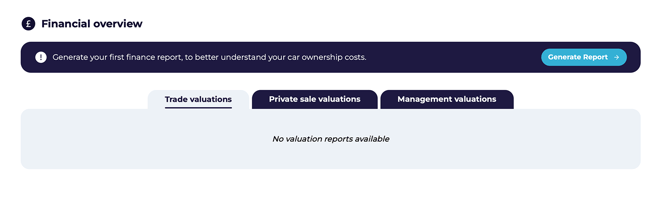
- Select the relevant vehicle record from the Vehicles page.
- Go to the Vehicle Data page by clicking on the relevant registration number.
- Scroll down to the Financial Overview section.
- Confirm you're working on the correct vehicle before generating the report.
Step 2: Start the report and enter the initial finance details
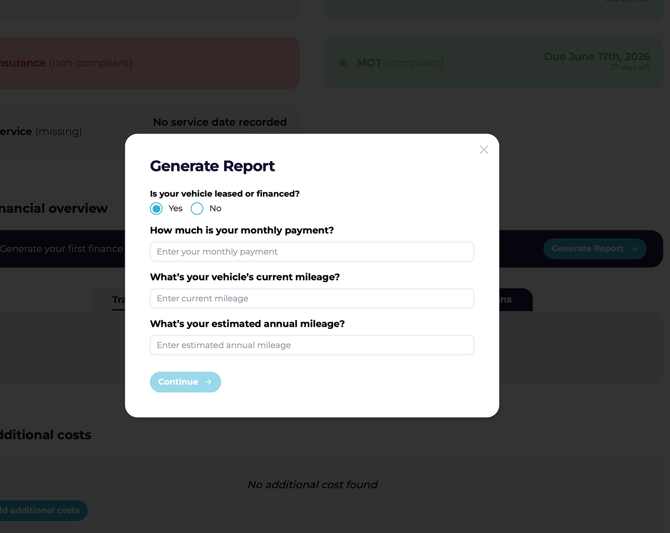
- Click Generate Report.
- In the pop-up, confirm Yes if the vehicle is financed.
- Enter the vehicle's monthly payment.
- Enter the vehicle's current cumulative mileage.
- Enter the estimated annual mileage for this vehicle.
- Click Continue to let the platform identify the agreement type.
Step 3: Complete the PCP agreement questions
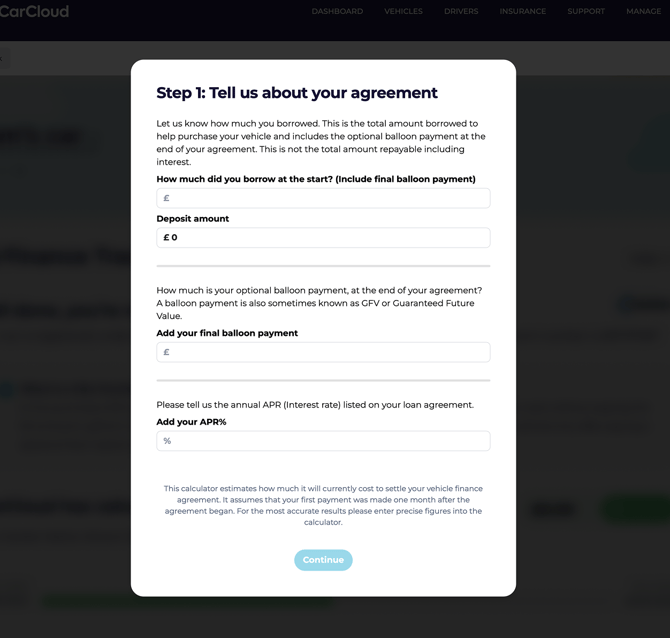
- Review the agreement type returned by the platform. A PCP (Personal Contract Purchase) agreement is a type of vehicle finance that’s popular because it sometimes offers lower monthly payments and flexible options at the end of the term.
- If the agreement is PCP, answer the follow-up questions by reference to the original agreement:
- Total amount borrowed at the start (including the final balloon payment)
- Any deposit paid at the start of the agreement, if applicable
- The actual final balloon payment
- The APR percentage
- Click Continue to generate the report.
⚠️ The total amount borrowed should include the final balloon payment — it's a common slip-up to leave it out, and it'll throw off every figure that follows.
💡 Have your agreement documents to hand before starting. Deposit, balloon, and APR are easy to mis-remember.
Step 4: Review the report summary and valuation outputs
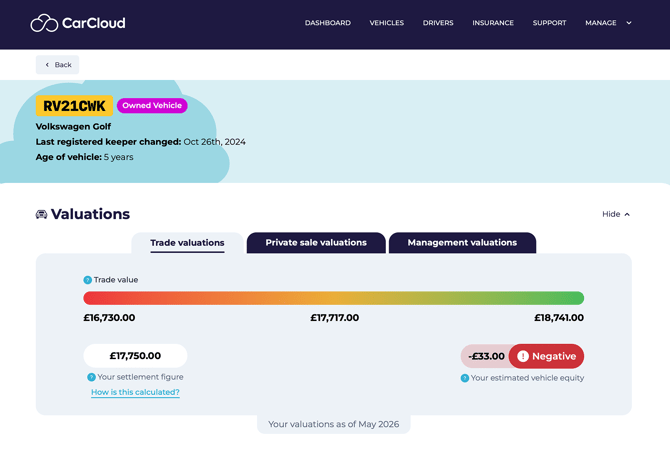
- Review the report once it loads.
- Check the valuation sections:
Valuation type
What it means
Trade
What a dealer would pay you. Tends to be on the low side.
Private sale
What you might get selling between two private individuals. Usually higher than trade.
Management
What your business expects to actually achieve — for example, where you've already got a buyer lined up.
Each valuation may also come with a range — low, medium and high — so you can see the spread rather than a single point estimate. - Locate the estimated settlement figure.
- Review the estimated vehicle equity value shown against the settlement figure.
Step 5: Inspect the Finance Tracker for agreement details
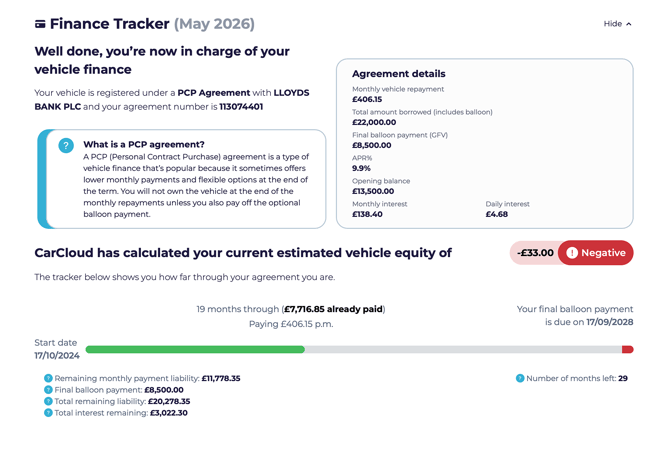
- Scroll down to the Finance Tracker section.
- Confirm the vehicle is listed under a PCP agreement.
- Verify the provider name and agreement number.
- Read the agreement description to understand the PCP structure.
- Review the agreement details populated from your inputs, including:
- Vehicle repayment
- Total amount borrowed
- Final balloon payment
- APR percentage
- Opening balance
- Monthly interest
- Daily interest
Step 6: Check repayment progress and remaining liability
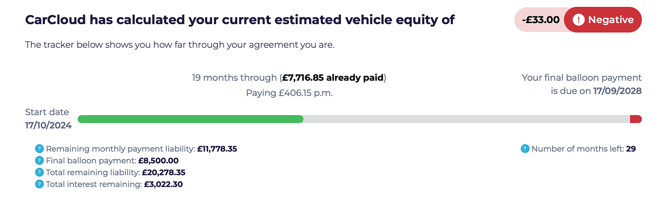
- Review how far the vehicle is through the agreement .
- Check how much has already been paid based on the monthly payment you entered.
- Review the remaining figures shown:
- Remaining monthly payment liability
- Final balloon payment due
- Total remaining liability
- Total interest remaining
⚠️ Missed payments aren't included in the calculation. If the account isn't fully up to date, treat the figures as a guide rather than a precise position.
Step 7: Review the settlement figure and early settlement saving
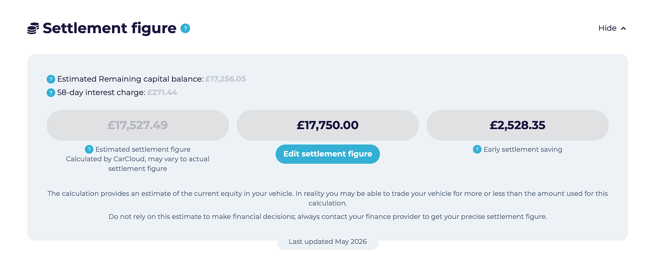
- Locate the Settlement Figure section in the Finance report.
- Review how the estimated settlement figure was calculated.
- Confirm whether the agreement is longer than 12 months — if it is, the 58-day interest charge may be included.
- Check the early settlement saving displayed alongside the settlement figure.
Step 8: Enter an actual settlement figure when you have one
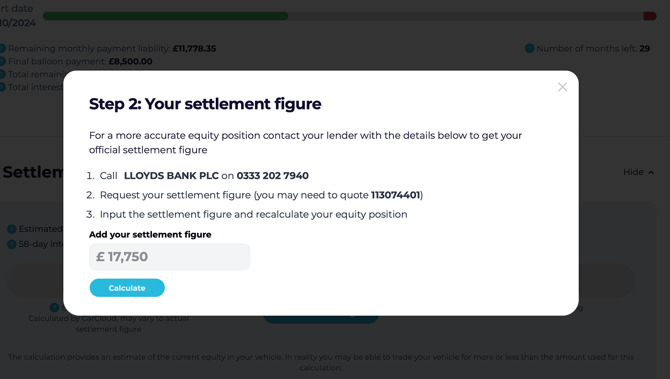
- If you have the actual settlement figure from your agreement documentation or from the finance provider or lender, click Enter Actual Settlement Figure.
- Enter the value in the pop-up.
- Click Calculate.
- Confirm the estimated settlement figure greys out and the actual settlement figure becomes the active value.
⚠️ Only enter an actual settlement figure once you've verified it with the lender. Settlement values change monthly, so always use the most current documentation available.
Step 9: Recalculate equity and review settlement history
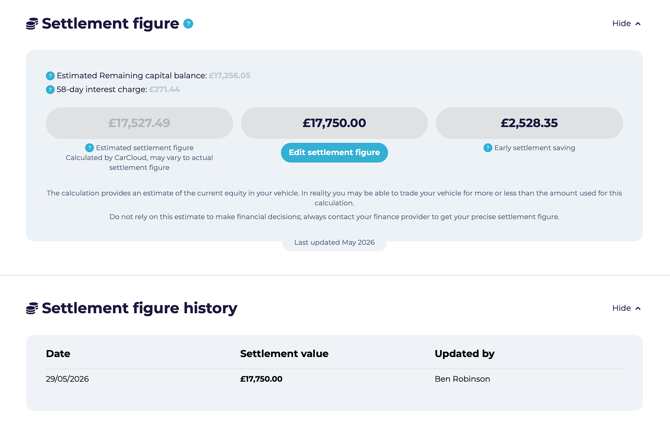
- Review the updated equity values against the valuations.
- Confirm the report now uses the actual settlement figure for its calculations.
- Check the settlement figure history for:
- Date
- Settlement value
- Updated by
💡 The settlement figure needs to be re-entered each time you generate a new report — the history log is how you keep a clear picture of how things have moved over time.
Step 10: Review voluntary termination and acquisition calculations
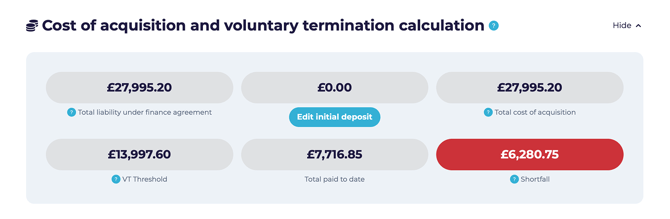
- Scroll down to the Cost of Acquisition and Voluntary Termination (VT) section.
- Review the figures shown against the VT threshold.
- Identify any shortfall or surplus based on the calculation.
- Use this section to assess whether the agreement is approaching voluntary termination limits.
⚠️ Voluntary termination outcomes vary by agreement. Always confirm the shortfall or surplus before making a decision based on these figures.
Step 11: Review the six-month financial projection
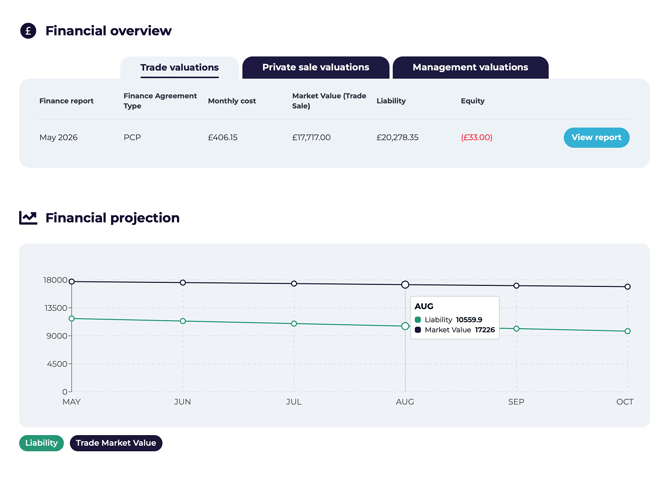
💡 The six-month projection is the fastest way to spot when a vehicle is heading toward positive or negative equity — useful context for renewal, replacement, and disposal conversations.
- Click Back to return to the vehicle record.
- Scroll back to Financial Overview.
- Review the 6-month financial projection.
- Compare the projected liability against:
- Trade market value
- Private sale valuation
- Use the projection to track when the vehicle value may best align with the remaining liability.
Tips for keeping PCP reports accurate
- Gather all required inputs before starting: monthly payment, mileage, deposit, balloon payment, and APR.
- Use the valuation and liability sections together to quickly assess the equity position.
- When you need agreement-specific details, jump straight to the Finance Tracker section.
- Re-run the report monthly to keep settlement and equity information current.
- Use the six-month projection to support timing decisions without needing separate manual calculations.
What's next?
- Head to Hire Purchase and Conditional Sale Finance Reports, Loan Vehicle Finance Reports, or Lease and Contract Hire Finance Reports if you also manage those types of agreements.
- Visit the Vehicles Management page to review the wider vehicle record.