
A quick orientation before you dive in: not every section appears for every vehicle. Owned and leased vehicles receive the full picture including finance. Grey fleet and spot hire don't, because the company doesn't own them. Vehicle information, compliance, mileage and history apply across all four types.
By the end of this section, you'll be able to:
- Open and orient yourself around an individual vehicle's data page
- Update vehicle information, mileage and finance values
- Read each compliance card and act on what it's telling you
- Generate a finance report and log additional costs
- Track total annual cost of ownership and business mileage
- Record vehicle history notes other team members can pick up
Opening a vehicle's data page

From the Vehicles page, click the registration of the vehicle you want to review. You'll land on that vehicle's own page — the single source of truth for everything CarCloud holds about it.
💡 Anywhere you see a vehicle registration as a link (in compliance reports, Upcoming Actions, search results), clicking it will take you to the same page.
The vehicle overview
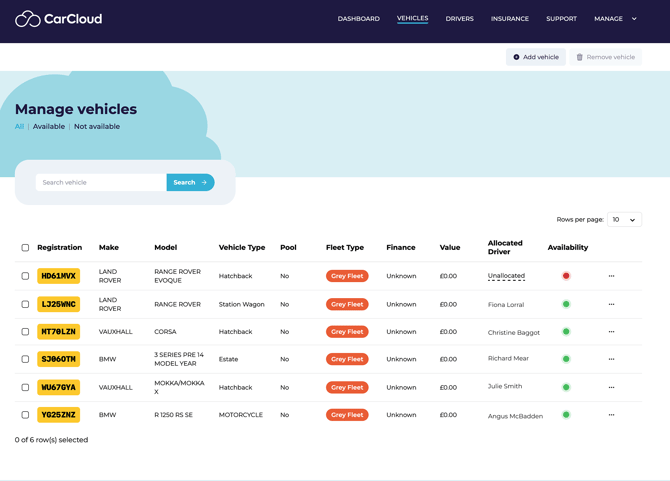
The top of the page summarises the headline information so you can get your bearings quickly:
- Car registration
- Fleet category (badge)
- Make and model
- Date last registered
- Vehicle age
The right-hand panel shows the currently assigned driver. If the vehicle is unallocated, you'll see that called out — a useful prompt to allocate someone before they need the vehicle.
💡 The fleet category tells you what to expect on the rest of the page. Owned and Leased vehicles get the full picture, including finance. Grey fleet and Spot hire skip the finance sections by design — see Step 12 for the full breakdown.
Vehicle-level actions
Three actions are available against the whole vehicle:
- Allocate / Deallocate driver — manage the currently assigned driver
- Edit fleet category — change the ownership category
- Remove vehicle — retire the vehicle from the fleet (it moves to Archive; history is preserved)
⚠️ Only use these when the change has been confirmed and approved. Removal in particular needs a quick second look — the vehicle can be reinstated, but it's quicker to get it right first time.
Vehicle information
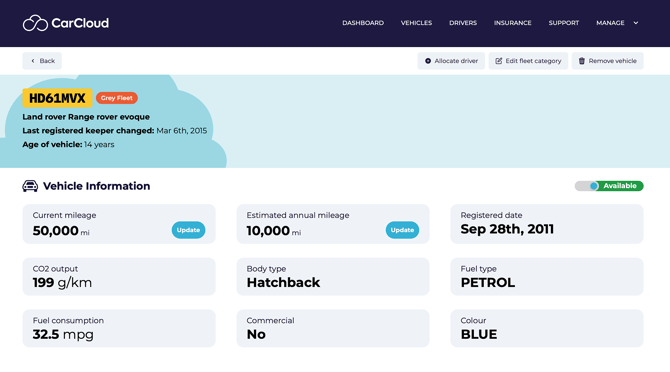
This section is populated automatically from the registration number, so most of the heavy lifting is already done. Have a glance through to confirm everything looks right:
- Current mileage
- Estimated annual mileage
- Monthly finance cost (where applicable)
- Registered date
- CO₂ output
- Body type
- Fuel type
- Fuel consumption (MPG)
- Gearbox
- Number of doors
- Commercial vehicle status
- Colour
The two fields you'll come back to most often are:
- Current mileage — is the cumulative mileage of the vehicle, update when you get a new reading from an inspection or driver report.
- Estimated annual mileage — update if usage patterns change (driver moves territory, vehicle shifts roles, etc.).
⚠️ Update the owned fleet vehicles or leased vehicles finance cost only when you have correct supporting figures (e.g. a finance statement). Wrong values flow through to the Total Annual Cost of Ownership and Finance reports.
Compliance status
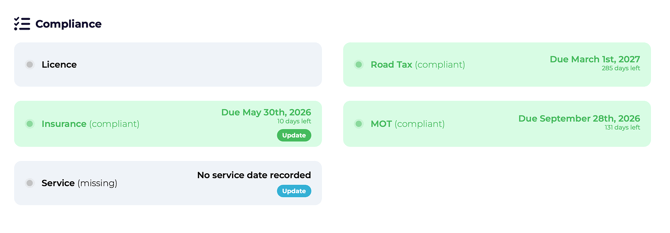
Compliance cards sit alongside each other, each colour-coded the same way as the Dashboard:
 |
non-compliant |
 |
partial |
 |
compliant |
Items shown may include:
- Licence
- Road tax — populated and refreshed automatically by CarCloud from the registration number of the applicable vehicle.
- Insurance
- MOT — populated and refreshed automatically by CarCloud from the registration number of the applicable vehicle
- Service
How insurance behaves depends on the vehicle type:
- Owned and leased vehicles — insurance is pulled from your fleet insurance policy automatically. This is included on the insurance tab.
- Grey fleet vehicles — the driver adds their own insurance details.
- Spot hire -insurance is normally included in the rental package
Service is the one card you'll usually update by hand. To set or refresh the service date, click Update on the Service card, enter the new date and confirm.
📝 For the broader compliance reminder cadence (when drivers are nudged automatically by CarCloud), see the Introduction guide — Viewing Compliance Details (Ongoing Management).
Finance overview
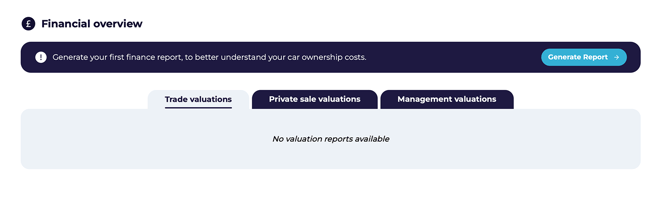
This section appears for owned and leased company vehicles only. It pulls together the financial picture: valuation, liability and (for owned vehicles) equity.
To pull in the latest figures, click Generate Report. CarCloud runs a Finance Report against the vehicle, populating market valuations, liability figures and equity calculations.
💡 Finance reports will need to be run each month, to ensure that your finance agreements and values remain up to date.
📝 For the full explanation of valuation types (Trade, Private, Management) and how equity is calculated, see the Introduction guide — Vehicle Valuations.
Additional costs
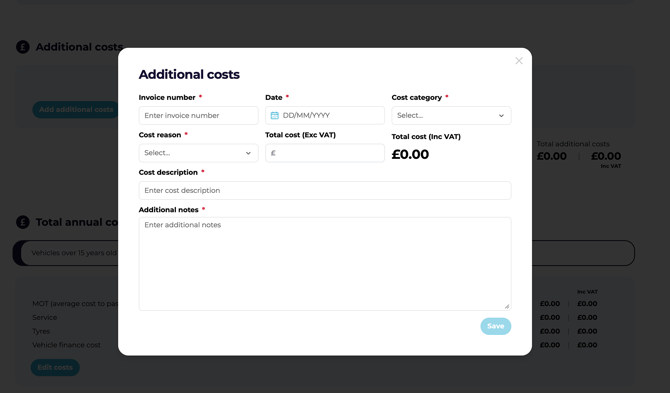
This is where you log expenses that aren't captured automatically — repairs, accessories, custom servicing, anything outside the standard categories.
To add a new cost:
- Click Additional Costs.
- Enter the invoice number, date, cost category, cost reason and amount.
- Confirm the cost is allocated to the right vehicle.
- Save to record it against the vehicle.
💡 Log costs as invoices arrive, not at year-end. It's much easier than reconstructing a year's worth of receipts later. Note that this is a temporary solution and is being replaced in 2026 with direct link to account system for automative costs
⚠️ Only edit existing costs when you have the supporting information or approval. These values flow into the Total Annual Cost of Ownership, so small errors compound.
Total annual cost of ownership
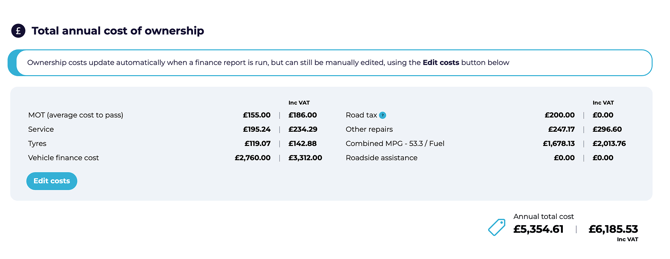
This panel pulls together the full operational cost picture for the vehicle over a 12-month window. Categories include:
|
Category |
What's included |
|---|---|
|
MOT |
Estimated MOT cost |
|
Service |
Routine servicing and maintenance |
|
Tyres |
Tyre replacement and maintenance |
|
Finance cost |
Total finance payments (owned and leased) based on the finance agreement details included for the vehicle |
|
Road tax |
Annual road tax |
|
Other repairs |
Maintenance not covered by routine servicing |
|
Combined MPG |
Estimated fuel cost based on the vehicle mpg and estimated annual mileage |
|
Roadside assistance |
Breakdown / roadside cover |
When a Finance Report has been generated, these values populate automatically from generic data, as well from data elsewhere in CarCloud. Edit any field if you need to correct or override a value by clicking the edit costs button.
Warranties
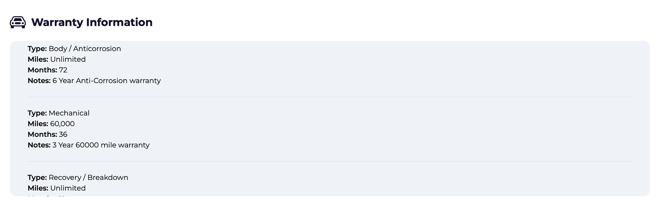
Any warranties associated with the vehicle are listed here. Use the section to check coverage when you're assessing support needs, scheduling repairs, or deciding whether to extend cover.
📝 Warranty management will expand in future releases — for now this section is read-only and for reference.
Business mileage
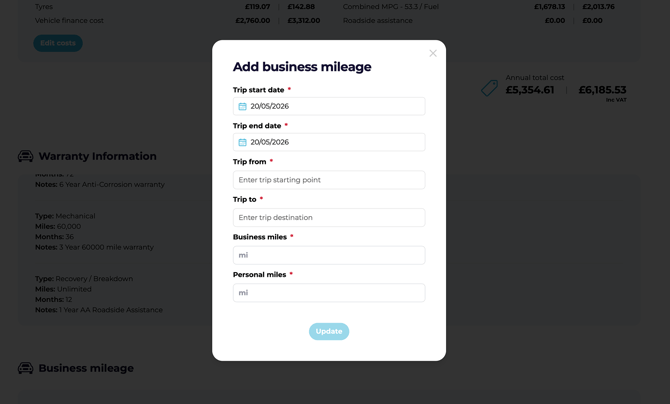
CarCloud uses business mileage from individual trips to calculate CO₂ emissions per vehicle this then feeds directly into the Dashboard's CO₂ Emissions panel.
To log a trip:
- Click Add Mileage from within the vehicle data page or driver self service dashboard.

- Enter the trip start date, end date, start location and end location.
- Enter the business miles for the trip — and personal miles, if relevant.
- Click Update to save.
The Mileage Summary below the form shows monthly totals for:
- Business mileage
- Business cost
- CO₂ output
💡 Glance at the summary at least once a month to spot missing or unusual entries — they become easier to fix while details are fresh, rather than only at year-end.
History and notes
Use the history section to log anything noteworthy about the vehicle — incidents, deviations, decisions, conversations with the driver. Click any entry in the table to open the full note in a pop-up.
💡 Be generous with history notes. They're not just for your benefit — they're how the rest of the team (and future-you) understand prior actions and decisions on the vehicle.
What's different for grey fleet and spot hire?
The structure of the page is the same across fleet categories, but the available sections differ:
|
Section |
Owned |
Leased |
Grey fleet |
Spot hire |
|---|---|---|---|---|
|
Vehicle information |
✓ |
✓ |
✓ |
✓ |
|
Compliance |
✓ |
✓ |
✓ |
✓ |
|
Finance overview |
✓ |
✓ |
— |
— |
|
Additional costs |
✓ |
✓ |
— |
— |
|
Total annual cost of ownership |
✓ |
✓ |
— |
— |
|
Warranties |
✓ |
✓ |
— |
— |
|
Business mileage |
✓ |
✓ |
✓ |
✓ |
|
History |
✓ |
✓ |
✓ |
✓ |
The principle: if the company doesn't own the vehicle, the finance and cost-of-ownership sections don't apply.
💡 Always check the fleet category badge at the top of the page before reaching for a finance-related action. Saves time and confusion.
Tips for keeping a vehicle record healthy
- Update current mileage and estimated annual mileage as soon as new data arrives — the rest of the panel calculates from these.
- Run a Finance Report at the start of any month, any sale, renewal or valuation conversation. Fresh numbers, fresh decisions.
- Log additional costs as invoices come in, not at year-end.
- Add history notes consistently — they're how future-you and the rest of the team understand what's been done and why.
- Glance at the mileage summary monthly to catch missing or odd trip entries early.
What's next?
With the individual vehicle in good shape, you can:
- Manage the people behind it on the Drivers Management page
- Review insurance policies on the Insurance Management page
- Set up shared vehicles on the Pool Vehicles page
- Step back up to the full fleet list on the Vehicles Management page