
By the end of this section, you'll be able to:
-
Find your way around the Top Navigation Bar and switch between the Fleet and Personal dashboards
-
Read the Actions Required panel and act on what it's telling you
-
Use Upcoming Actions to stay ahead of renewals
-
Make sense of your vehicle assets, valuations and finance liabilities at a glance
-
Track your fleet's CO₂ emissions and forecast your annual cost of ownership
The Fleet Dashboard
As soon as your CSV upload is complete, you'll land on the Fleet Dashboard. Wherever you are in the platform, you can tell at a glance — the section you're in is underlined in blue on the Top Navigation Bar. So if Dashboard is underlined, you're home.
Your dashboard gives you a single view of everything that matters: your vehicles, your drivers, your compliance status and your key operational insights. Specifically, you'll see:
-
Actions Required
-
Upcoming Actions
-
Vehicle Assets
-
Vehicle Types
-
Fleet Category
-
CO₂ Emissions
-
Finance Agreements
-
Liabilities by Finance Agreement
-
Combined Forecast Cost of Ownership
Together, these panels let you keep an eye on how your fleet and drivers are performing, stay on top of compliance, see your financial commitments and spot anything that needs your attention.
💡 First time here? Don't be alarmed if a lot of fields are red — that just means data's still to be added. It's completely normal at this stage. Click around freely to learn the layout. There's a back button in the top-left of every screen, and clicking Dashboard will always bring you home.
Top Navigation Bar

The Top Navigation Bar follows you on every page. From here you can jump to:
-
Dashboard — Takes you back to your main overview.
-
Vehicles — Your full list of company-owned and pool vehicles. Click any registration to open that vehicle's page.
-
Drivers — Your full list of employee and contractor profiles. Click any name to open their page.
-
Insurance — Where you'll manage your fleet insurance policies.
-
Manage — Your admin tools and settings (see the Manage page).
-
Support — Contact the CarCloud support team.
Dashboard Toggle
You can toggle between the Company Dashboard and your own vehicle:
-
Fleet Dashboard — This will show you the company-wide view of the fleet.
-
Personal Dashboard — This will show you the vehicle that you are associated with, and you can self-manage your own vehicle from here.
Company Overview Panel
The top panel of your Fleet Dashboard pulls together the headline numbers:
-
Vehicles | Pool vehicles — The total number of live vehicles in your fleet, with a count of how many are pool vehicles. Pool vehicles are the ones shared between several drivers (see the Pool Vehicles page).
-
Employees — How many employee profiles you have on the platform.
-
Contractors — How many third-party contractor profiles you have on the platform.
-
Profiles complete — How many profiles have successfully been invited to the platform and have logged in for the first time.
Actions Required (Compliance)
This is where CarCloud flags anything that needs your attention right now. Each item shows its current status using simple colour coding:
|
Status |
What it means |
|---|---|
|
🔴 Red |
Non-compliant. Something's missing, expired or incomplete — you'll need to take action. |
|
🟡 Yellow |
Partially compliant. Some items still need a look. |
|
🟢 Green |
Compliant. You're good — nothing to do. |
Viewing Compliance Details (First Access)
The first time you open the Dashboard, expect to see a lot of red. That's because the data hasn't been entered yet — not because anything's wrong.
When you click any red or yellow item, you'll see the affected vehicles or drivers in a list. You can switch between three filters:
-
All — every vehicle, regardless of status
-
Compliant — only the ones that are fine
-
Non-compliant — only the ones that need action
The default filter you land on depends on the colour you clicked:
-
Red banner — opens with Non-compliant applied (so you can get straight to fixing things).
-
Yellow banner — opens with All applied.
-
Green banner — opens with Compliant applied.
Full Compliance
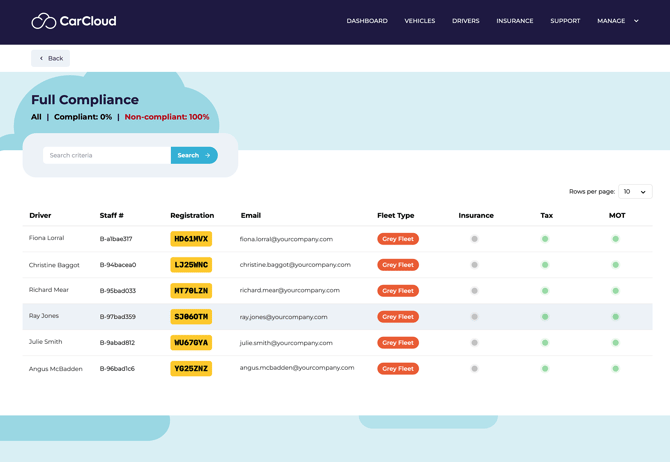
Click the Full compliance card to see a per-vehicle report covering Insurance, Tax and MOT in one place.
Insurance
Every vehicle on UK roads needs insurance, and CarCloud tracks it for both your company-owned vehicles and your grey fleet:
-
Owned vehicles — covered by your corporate policies (see the Insurance Management page).
-
Grey fleet (employee or third-party owned) — click the Grey Fleet insurance panel to see where each driver stands.
Before you can mark a grey fleet vehicle as compliant, you (or the driver) need to confirm the policy includes business use — usually by checking the insurance certificate. You can enter the data yourself on behalf of the driver, or invite the driver to add it directly from their Personal Dashboard.
To update an individual vehicle's insurance:
-
Click the vehicle.
-
Click the Update button on the insurance card.
-
Enter the new details in the pop-up.
-
Click Update.
📷 [Screenshot: insurance update flow]
Vehicle Tax
CarCloud handles tax compliance for you automatically — the field is populated from the Vehicle Registration Number and refreshed continuously, so you don't have to chase it.
How it works depends on who owns the vehicle:
-
Owned and leased vehicles — you'll see the compliance status on screen. It's up to you to make sure tax is purchased on time.
-
Grey fleet — CarCloud emails the driver directly when their tax is due.
📝 Reminder cadence to be confirmed (e.g. 48 hours beforehand, then refreshed every 24 hours).
If you've got a driver who's slow to act, you can always send them a separate email yourself.
MOT
Like tax, MOT compliance is populated automatically from the Vehicle Registration Number — no manual input needed.
How it works depends on who owns the vehicle:
-
Owned and leased vehicles — you'll see the status on screen. It's up to you to make sure the MOT is booked. Once it's passed, CarCloud will refresh the field within 48 hours.
-
Grey fleet — CarCloud emails the driver directly when their MOT is due.
📝 Reminder cadence to be confirmed (e.g. 48 hours beforehand, then refreshed every 24 hours).
Service
Service compliance is date-led, so you (or the driver) need to enter the next service date.
To set the service date for a single vehicle:
-
Click the vehicle.
-
Scroll down to the Compliance section.
-
Click the blue Update button.
-
Add the date and click Update.
Pool Car
This shows you the number of pool vehicles waiting to be approved or allocated. To manage them, head to the Pool Vehicles page.
Viewing Compliance Details (Ongoing Management)
Once you're up and running, you'll mostly use this panel to spot what needs doing. Click any banner in Actions Required to open the detailed Compliance page — the system will apply the right filter for the colour you clicked (see the colour key in Viewing Compliance Details (First Access) above).
You manage owned vehicles directly. For grey fleet, CarCloud takes the legwork off your hands by sending automatic reminders. Here's the cadence:
|
Type |
Reminder 1 |
Reminder 2 |
Warning 1 |
Warning 2 |
|---|---|---|---|---|
|
Vehicle tax |
−14 days (coming up) |
−7 days (remains due) |
+2 days (overdue) |
+4 days (do not drive) |
|
MOT |
TBC |
TBC |
TBC |
TBC |
|
Insurance |
TBC |
TBC |
TBC |
TBC |
|
Service |
TBC |
TBC |
TBC |
TBC |
Upcoming Actions
This panel is your early-warning system. It surfaces vehicle-related tasks that are coming up in the current month and the next two — so you can plan instead of react. For each entry, you'll see the type of renewal and how many vehicles or drivers are involved.
Accessing Upcoming Action Details
Each item is clickable. Click one and you'll be taken straight to a filtered list for that action type:
-
Vehicle Tax Renewals — opens the vehicle tax page.
-
MOT Renewals — opens the MOT page.
-
Grey Fleet Insurance Renewals — opens the insurance page filtered to grey fleet.
-
Fleet Insurance Renewals — opens the insurance page filtered to your company fleet.
-
Service Date Renewals — opens the service page.
From there, follow the steps in Viewing Compliance Details (First Access) above to update each record.
Vehicle Assets — Owned and Leased
This is where you'll get a financial overview of the vehicles you own and lease. CarCloud pulls in the details automatically from third-party data sources using the registration number — so most of the heavy lifting is done for you.
💡 Grey fleet doesn't appear here, since those vehicles aren't owned by your company.
Vehicle Assets Panel
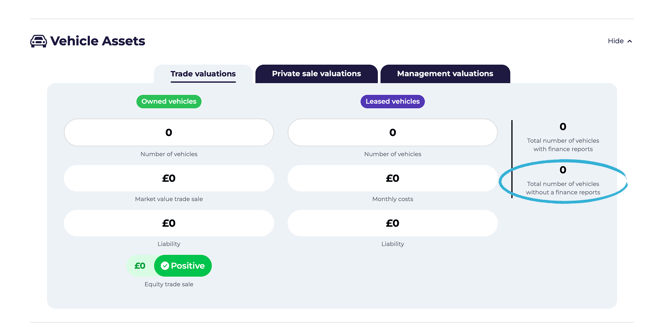
You'll only see vehicles here that have had a Finance Report run against them. Reports run automatically each month and bring in the latest market valuations, finance liabilities and equity calculations. You can also kick off a report manually whenever you need fresh numbers.
The box on the right tells you how many vehicles are still missing a finance report. For the most accurate Asset panel, click that box and run a report for each vehicle in the list.
Owned Vehicles
This includes anything you've bought outright, plus vehicles on PCP, HP or Conditional Sale. You'll see:
-
Number of vehicles
-
Market value — the estimated current value. Click the panel to switch between Trade, Private and Management valuations.
-
Liability — what's still owed on any loan or finance agreement.
-
Equity — market value minus liability. Could be positive or negative — and either way, it shapes what you do next.
Leased Vehicles
These are typically Contract Hire and Lease agreements.
You don't own leased vehicles — effectively, you're renting them — but you do have long-term liabilities to track. You'll see:
-
Number of vehicles
-
Monthly finance costs
-
Total finance liability
Vehicle Valuations
Why do accurate valuations matter? They help you:
-
Get the best price when you sell.
-
Avoid overpaying when you replace.
-
Stay insurance-compliant (most insurers want up-to-date market values).
-
Calculate equity, which influences your finance options.
All your valuations come from the per-vehicle Finance Reports. To refresh them, run a Finance Report on each vehicle (see Vehicle Assets Panel above).
A couple of things to remember:
-
Valuations are only generated for owned vehicles.
-
Liabilities apply to both owned and leased vehicles.
-
Equity (market value − liability) only makes sense for owned vehicles.
You can choose between three valuation types and switch between them as needed:
|
Valuation type |
What it means |
|---|---|
|
Trade |
What a dealer would pay you. Tends to be on the low side. |
|
Private sale |
What you might get selling between two private individuals. Usually higher than trade. |
|
Management |
What your business expects to actually achieve — for example, where you've already got a buyer lined up. |
Click the number of owned vehicles to see a per-vehicle breakdown of median valuations, remaining liability and resulting equity.
Click the leased vehicles number to see a per-vehicle breakdown of monthly liabilities and total liabilities.
Missing Reports
This box tells you how many owned or leased vehicles are still waiting for a Finance Report. Click it to see the list, then run reports as needed to keep your asset values accurate.
Vehicle Types
This panel gives you a quick read on the body types that make up your fleet. CarCloud populates it automatically using each vehicle registration, regardless of fleet category (Owned, Leased, Spot Hire or Grey Fleet).
The list scrolls horizontally — if you've got more types than fit on screen, use the arrow control or scroll left and right.
Fleet Category
This is a pie chart breakdown of how your fleet splits across ownership types:
-
Owned vehicles
-
Leased vehicles
-
Spot hire
-
Grey fleet
A good way to take in your fleet's composition at a glance.
CO₂ Emissions
Want to know your fleet's environmental impact? This panel pulls it together for you.
Emission Metrics
You'll see two headline numbers:
-
Total emissions — total CO₂ generated by your fleet over the selected period.
-
Monthly average — average CO₂ generated each month.
Both are in kg CO₂, calculated from each vehicle's Business Mileage multiplied by its standard manufacturer CO₂ figure. To manage Business Mileage, head to the Vehicles Management page (Business Mileage section).
Emissions Chart
A bar chart shows monthly emissions across the year, broken down by fleet category (Owned, Leased, Spot Hire, Grey Fleet) — each in its own colour, so you can see at a glance which part of your fleet is generating the most.
Overview of Finance Agreements
If you want a clear picture of how your vehicles are financed and what you owe across them, this is the section to look at. It's two charts: one showing the types of finance agreement, and one showing the value of liabilities under each type.
Number of Finance Agreements
A pie chart showing how your finance agreements break down by type:
|
Agreement |
What it means |
|---|---|
|
Contract Hire |
Vehicles rented under a long-term hire agreement (you don't own them). |
|
Lease |
Vehicles financed through a leasing arrangement (again, not owned). |
|
HP (Hire Purchase) |
Bought through instalments — ownership transfers to you after the final payment. |
|
PCP (Personal Contract Purchase) |
Lower monthly payments with an optional final balloon payment if you want to take ownership. |
|
Conditional Sale |
Bought through instalments — ownership transfers when all payments are completed. |
|
Loan |
Financed through a loan arrangement. |
The labels under the chart show how many vehicles sit under each agreement.
Liabilities by Finance Agreement
The second chart shows the total financial liability associated with each agreement type, so you can see which financing methods carry the biggest commitment. Each label shows:
-
The agreement type
-
The total outstanding amount
-
The number of vehicles attached to that agreement
This gives you a fast way to understand which financing methods drive most of your company's financial commitments.
Combined Forecast Annual Cost of Ownership
This panel pulls together the estimated operational costs across your owned and leased vehicles. (Grey fleet isn't included.)
You'll see the figures excluding VAT and including VAT, so you can plan for both.
Cost Categories
|
Category |
What's included |
|---|---|
|
MOT (Average Cost to Pass) |
The estimated cost for your vehicles to pass the MOT. |
|
Service |
Estimated cost of routine servicing and maintenance. |
|
Tyres |
Estimated tyre replacement and maintenance costs. |
|
Car finance cost |
Total finance payments for your financed vehicles. |
|
Road tax |
Combined road tax across the fleet. |
|
Other repairs |
Typical additional maintenance not covered by routine servicing. |
|
Combined MPG (fuel) |
Estimated fuel cost based on your fleet's consumption. |
|
Roadside assistance |
Cost of breakdown and roadside cover. |
Monthly and Annual Totals
What's next?
Now that you've got a feel for your dashboard, you can:
-
Dig into your fleet on the Vehicles Management page
-
Manage your people on the Drivers Management page
-
Review insurance policies and renewals on the Insurance Management page
-
Set up shared vehicles on the Pool Vehicles page