
By the end of this section, you'll be able to:
- Open a vehicle record and start an HP or Conditional sale finance report
- Enter the agreement details correctly so the figures reflect reality
- Review the finance tracker, equity, and settlement breakdown
- Apply the right interest period when validating settlement estimates
- Record actual settlement figures and build up a settlement history
- Use the financial projection to plan against liability and market value
Step 1: Open the vehicle record and find the finance section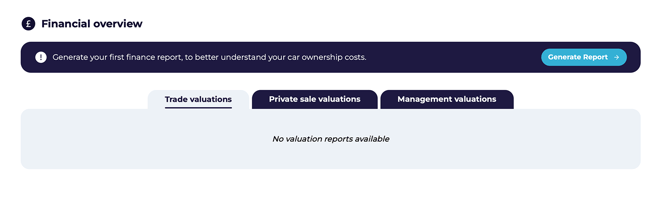
- Select the relevant vehicle record on the Vehicles page.
- Go to the Vehicle Data page by clicking on the relevant registration number.
- Scroll down to the Financial Overview section.
- Confirm you're working on the correct vehicle before generating the report.
Step 2: Start the report and enter the initial finance details
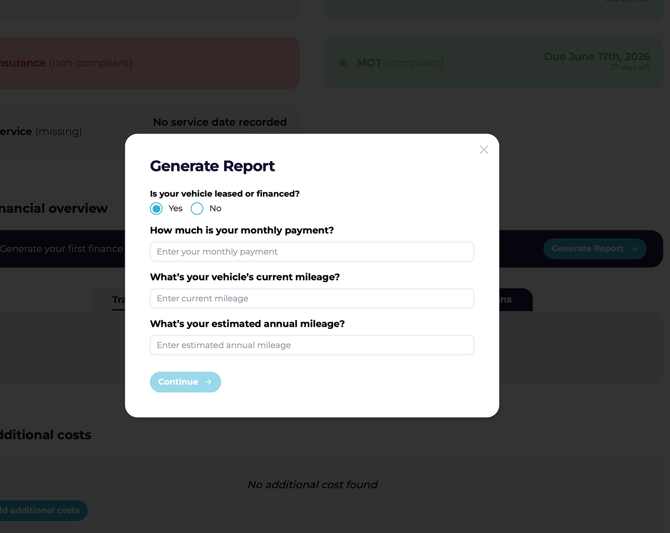
- Click Generate Report.
- In the pop-up, confirm Yes if the vehicle is financed.
- Enter the vehicle's monthly payment.
- Enter the vehicle's current cumulative mileage.
- Enter the estimated annual mileage for this vehicle.
- Click Continue to let the platform identify the agreement type.
Step 3: Complete the HP or Conditional sale agreement questions
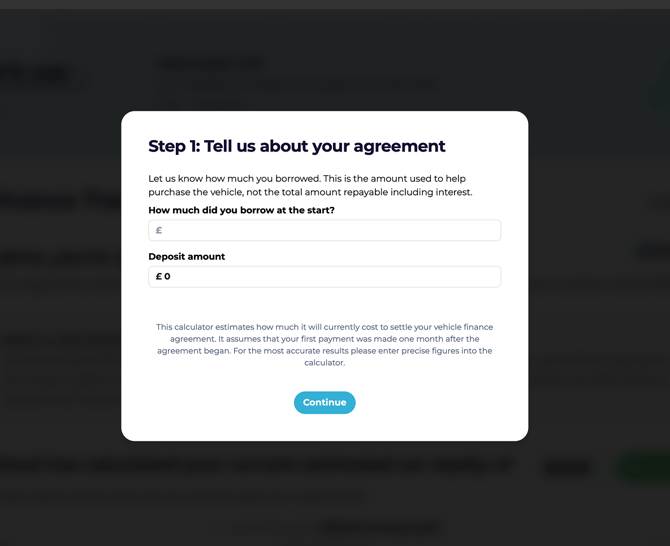
- Once the borrowing and deposit details are input correctly, click Continue.
- The platform will display the agreement summary.
- Review the valuations shown — the platform will generate an estimated settlement figure based on the information you've entered.
💡 Have your agreement documents to hand before starting. Deposit is easy to mis-remember.
Step 4: Review the report summary and valuation outputs
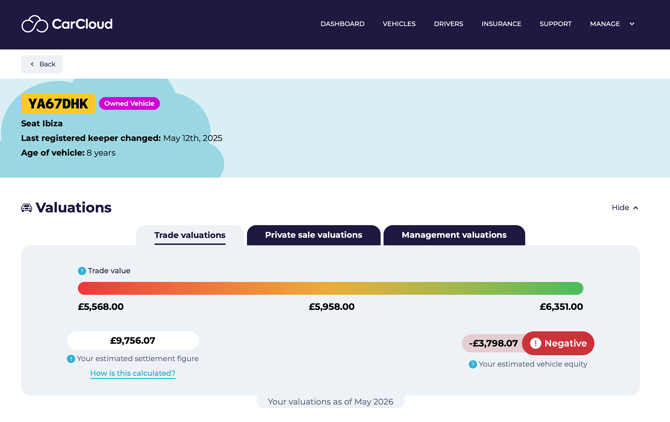
-
- Review the report once it loads.
- Check the valuation sections:
- Trade valuation
- Private sale valuation
- Management valuation
- Locate the estimated settlement figure.
- Review the estimated car equity shown against the settlement figure.
Step 5: Inspect the Finance Tracker for agreement details
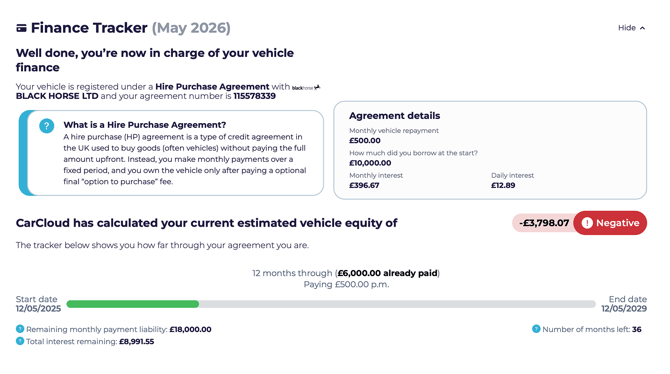
- Scroll to the Finance Tracker section.
- Confirm the vehicle is listed under an HP or Conditional sale agreement.
- Verify the provider name and agreement number.
- Read the agreement description to understand the HP or Conditional sale structure.
- Review the agreement details populated from your inputs, including:
- Monthly vehicle repayment
- Total amount borrowed
- Monthly interest
- Daily interest
Step 6: Check repayment progress and remaining liability
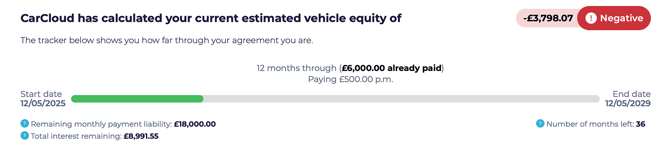
- Review how far through the agreement the vehicle is.
- Check how much has already been paid based on the monthly payment you entered.
- Review the remaining figures shown:
- Remaining monthly payment liability
- Total interest remaining
- Number of months left
⚠️ Missed payments aren't included in the calculation. If the account isn't fully up to date for payments, treat the figures as a guide rather than a precise position.
Step 7: Review the settlement figure and early settlement saving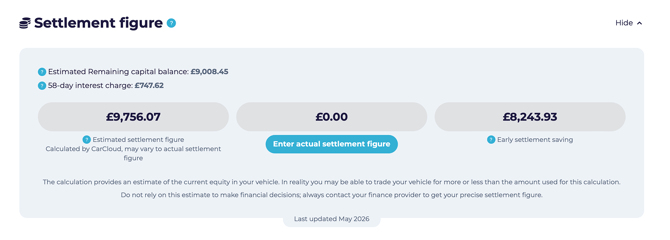
Savings opportunity! It is often possible to settle the agreement early by paying a settlement amount consisting of the outstanding capital plus a smaller amount of interest. But this may only be possible once 50% of the finance agreement has been paid up (see Voluntary Termination section).
- Locate the Settlement Figure section.
- Review how the estimated settlement figure was calculated.
- 58-day interest charge is automatically applied if your agreement length is longer than 12 months. If the agreement length is 12 months or shorter a 28-day interest charge will be automatically applied.
- Check the early settlement saving displayed alongside the settlement figure.
Step 8: Enter an actual settlement figure when you have one
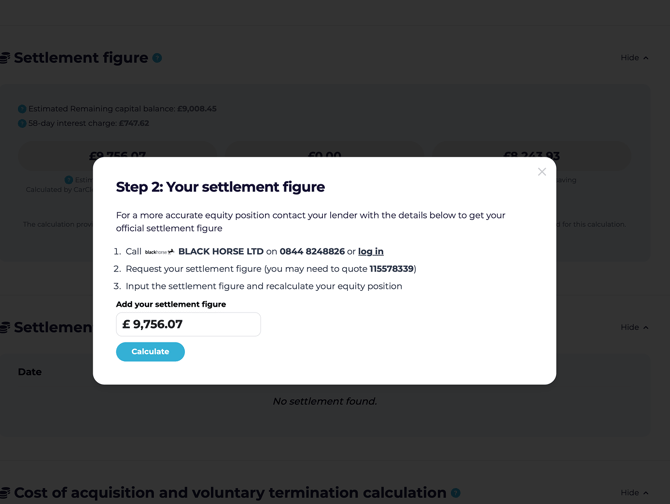
- If you have the actual settlement figure from your agreement documentation, click Enter Actual Settlement Figure.
- Enter the value in the pop-up.
- Click Calculate.
- Confirm the estimated settlement figure greys out and the actual settlement figure becomes the active value.
⚠️ Only enter an actual settlement figure once you've verified it with the lender. Settlement values change monthly, so always use the most current information available.
Step 9: Recalculate equity and review settlement history
- Review Step 10: Review voluntary termination and acquisition calculations section.
- Use this section to determine whether voluntary termination is possible.
- Assess whether the outcome would result in a shortfall or surplus based on the agreement.
⚠️ Voluntary termination outcomes vary by agreement. Always check for a potential shortfall or surplus before making any decision based on these figures.
Step 10: Review voluntary termination and acquisition calculations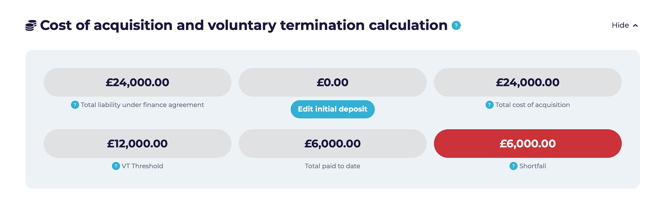
- Scroll down to the Cost of Acquisition and Voluntary Termination section.
- Review the figures shown against the VT threshold.
- Identify any shortfall or surplus based on the calculation.
- Use this section to assess whether the agreement is approaching voluntary termination limits.
⚠️ Voluntary termination outcomes vary by agreement. Always confirm the shortfall or surplus before making a decision based on these figures.
Tips for keeping finance reports accurate
- Have the original agreement documents to hand before starting so you can quickly enter the borrowed amount, deposit, and agreement number.
- Use the estimated settlement figure first if the actual figure isn't immediately available, then refresh it once you have the real number.
- Re-run the report monthly to keep settlement and equity information current.
- Use the six-month projection to support timing decisions without needing separate manual calculations.
What's next?
- Head to Loan Vehicle Finance Reports or Lease and Contract Hire Finance Reports or PCP finance reports if you also manage vehicles on those agreements.
- Visit the Vehicles Management page to review the wider vehicle record.