
By the end of this section, you'll be able to:
- Select a company vehicle and prepare it for pool conversion
- Remove any existing driver allocation before converting
- Confirm the vehicle's condition with the right option
- Verify a successful conversion using the pool vehicle badge
- Find the supporting logs and records for the pool vehicle
Step 1: Select the vehicle to convert
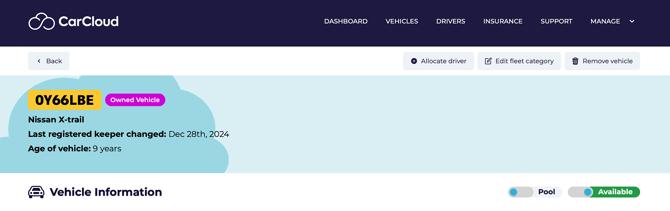
- Open the vehicle list in the Vehicles page.
- Select the company vehicle you want to convert into a pool vehicle by clicking on the applicable registration number.
- Confirm that the vehicle is either:
- Owned by the company, or
- A leased company vehicle
Step 2: Remove any existing driver allocation
- Check whether the vehicle is currently allocated to a driver.
- If it is allocated, deallocate the driver before continuing.
- Click on the pool vehicle toggle to begin the conversion process.
Step 3: Confirm the vehicle's condition
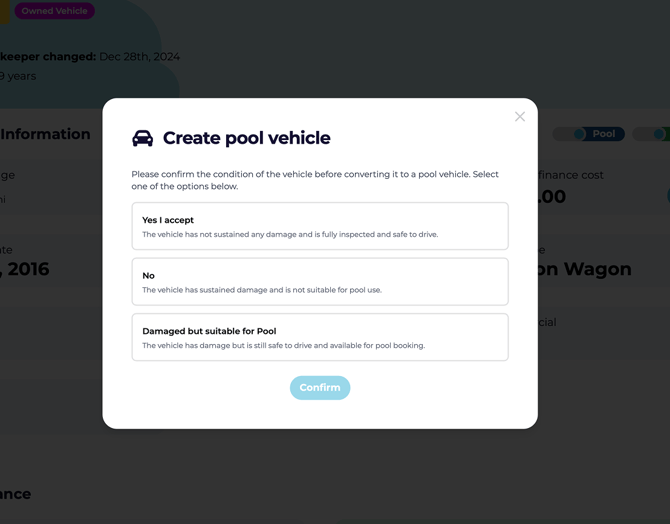
- A confirmation pop-up will appear asking you to verify the vehicle's condition.
- Review the vehicle carefully before selecting an option.
- Click on the condition that best matches the vehicle's current state.
💡 Inspect the vehicle in advance so you can pick the right option without guessing. The condition you record here sets the starting point for every future check.
Step 4: Choose the correct condition option
Pick the option that matches the vehicle's state:
- Yes, I accept — choose this when:
- The vehicle has no damage
- The vehicle has been fully inspected
- The vehicle is safe to drive
- No — choose this when:
- The vehicle has sustained damage
- The vehicle is not suitable for pool use
- Damaged, but suitable for pool vehicle — choose this when:
- The vehicle has damage
- The vehicle is still safe to drive
- The vehicle can be made available for pool booking
⚠️ Selecting No stops the conversion — the vehicle will not be turned into a pool vehicle. Only choose No if the vehicle is genuinely unsuitable.
Step 5: Complete the pool vehicle conversion
- If the vehicle is safe and acceptable for pool use, confirm the selection.
- The platform will create the pool vehicle.
- If you selected Damaged, but suitable, the vehicle will still be available for booking, but its damage status will be recorded from the start.
Step 6: Verify the vehicle was converted successfully
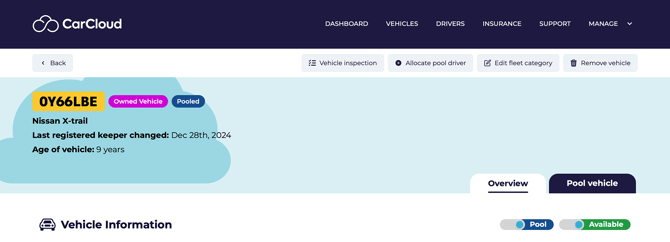
- After conversion, check the vehicle record for a pool vehicle badge next to the fleet category badge.
- This badge confirms the vehicle has been successfully converted into a pool vehicle.
💡 The badge is your at-a-glance proof the conversion has been completed — make a habit of checking for it right after every conversion.
Step 7: Review the pool vehicle tab and logs
- Open the new pool vehicle tab on the vehicle record.
- Review any driver approvals created for pool use requests.
- Use the tab to monitor pool-related activity and requests.
Step 8: Access supporting pool vehicle records
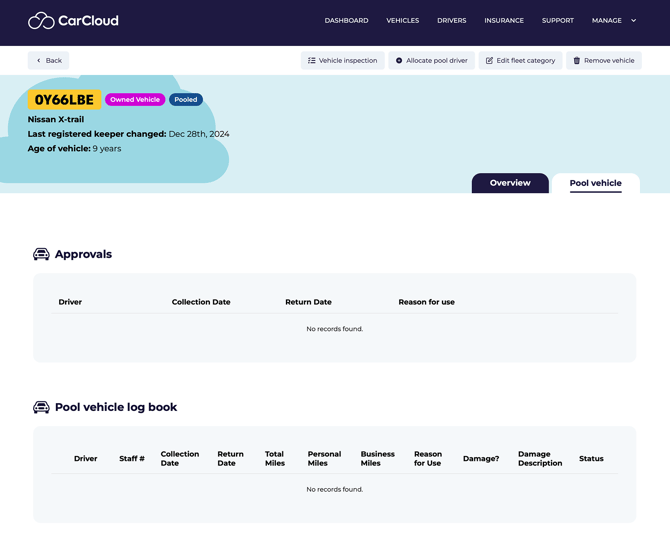
Review the records associated with the pool vehicle, including:
- Vehicle log book
- Pool vehicle inspections log
- Business mileage log
- Mileage summary
Use these records to track usage, inspections, and mileage for the pool vehicle.
💡 Keep the vehicle log book and mileage records updated regularly — pool vehicles see many more drivers than allocated ones, so accurate logs are essential for compliance and dispute resolution.
Tips for keeping pool vehicle conversions clean
- Verify driver allocation status before starting to avoid delays.
- Inspect the vehicle in advance so you can pick the correct condition option quickly.
- Use the pool vehicle badge and tab immediately after conversion to confirm success.
- Keep the vehicle log book and mileage records updated regularly to maintain accurate pool vehicle tracking.
- Be conservative with the Damaged, but suitable option — only use it when the vehicle is genuinely safe to drive.
What's next?
- Visit Pool Vehicles for the wider view of pool fleet management.
- See Managing Vehicle Availability if a pool vehicle needs to be taken out of service.
- Head to Managing Drivers and Admin Accounts to handle any driver re-allocation that follows.