
By the end of this section, you'll have:
- Bought licence check credits
- Collected a licence mandate from each driver
- Run your first licence check and read the result
- Set up checks to run automatically
A check only reaches the DVLA when the driver's mandate is agreed. If it isn't, or the details don't match, no credit is used.
Getting started: what you need
Before a check can run, you need two things: credits to pay for it, and the driver's permission (their mandate).
| Term | What it means |
| Credit | One licence check. Credits cost £3.00 each and are bought in Company settings. |
| Mandate | The driver's permission for your company to check their licence. It lasts 3 years from the day they accept, or until they withdraw it. |
| Check | A request to the DVLA for the driver's licence status, offences, points and entitlements. |
| Schedule | A check set to run automatically on a future date, once or on a repeating cycle. |
⚠️ If a driver hasn't agreed their mandate, their check won't start. No credit is used.
Step 1: Buy licence check credits
Each check uses one credit, so start by topping up your balance.
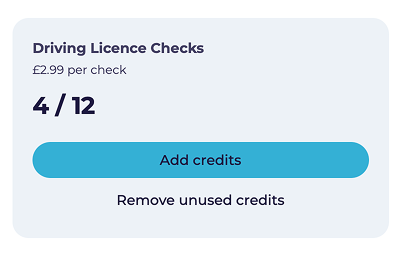
- Open Manage → Company settings and scroll to Credits.
- Find the Driving Licence Checks card. It shows your balance as credits left / credits bought, for example 4 / 12.
- Click Add credits.
- Enter how many checks you want. The total updates as you type, for example 2 = £5.98.
- Click Purchase. You'll be taken to a secure Stripe payment page.
- Enter your card details, tick the box to agree to the Terms & Conditions and Privacy Policy, then click Pay.
- Check the Purchase Successful message when you're returned to Company settings. It shows the amount paid, checks bought and your new balance. Click View Invoice to download a copy, or Done to close.
💡 Scheduled checks use a credit each time they run, so keep enough credits for any schedules you set up.
Step 2: Get your driver's mandates
Every driver must agree a mandate before you can check their licence. The Licence mandate page shows where each driver is up to.
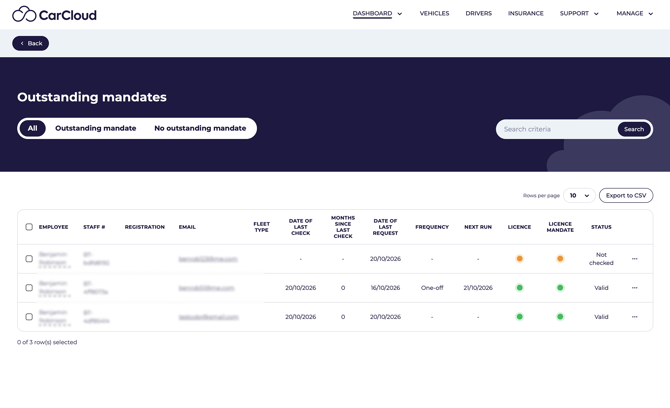
Check each driver's mandate status
| Status | What it means |
| Green | Mandate agreed. The driver can be checked. |
| Amber | Mandate requested but not agreed yet, or withdrawn. The driver can't be checked. |
| Red | Mandate not requested |
The Licence mandate column shows a coloured dot for every driver:
Use All, Mandated or Not mandated at the top of the page to filter the list, or search by name or email.
Send a reminder
- Click the driver's name to open their record. You'll land on the Mandate tab.
- Click Send reminder.
- Confirm by clicking Send reminder again. The driver is emailed that driving licence checks are needed. You'll see Reminder sent, and History records Licence mandate reminder sent.
Once the driver agrees, the Mandate tab shows Licence mandate agreed, the date approved, the expiry date and the details they gave.
Step 3: Run a licence check
You can check one driver or several at once. Results normally come back from the DVLA within a few seconds.
Check one driver
- Open the Licence mandate page.
- Click the … menu at the end of the driver's row.
- Choose Start licence check.
- Click Continue on the message confirming The check has been sent to the DVLA.
- Open the driver's Licence tab to see the result. One credit is taken from your balance.
💡 You can also click Recheck on a driver's Licence tab to run a new check.
Check several drivers at once
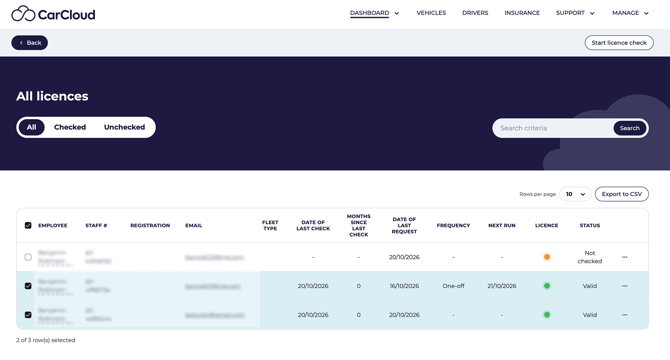
- Tick the box beside each driver you want to check.
- Click Start licence check at the top of the page.
- Click Continue on the message confirming The checks have been sent to the DVLA. One credit is used per driver.
⚠️ Checks start as soon as you click, with no "are you sure?" step. Double-check your selection before you click Start licence check.
If a driver has no mandate
You can't tick a driver without an agreed mandate. If you start a check for them from the … menu, it won't run. You'll see No checks started: 1 not started, 1 no mandate, no credit is used, and History records Licence check not started.
Send them a reminder (Step 2) and try again once they've agreed.
Step 4: Review the results
Open any driver and select the Licence tab to see their latest result.
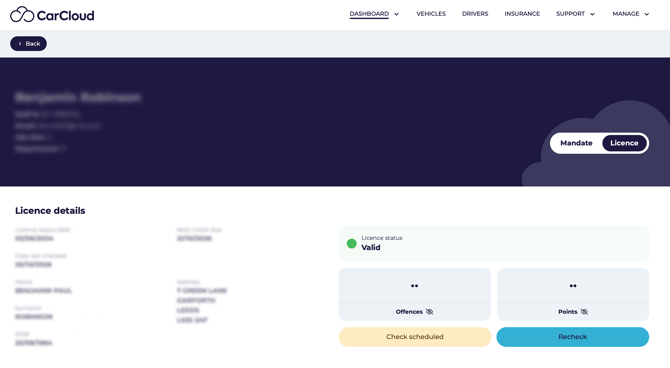
What you'll see
- Licence details: expiry date, next check due, date last checked, and the name, date of birth and address held by the DVLA.
- Licence status: for example Valid.
- Offences and Points: hidden as •• until you reveal them.
- Offences: code, description, points, conviction date, offence date and whether it led to a disqualification.
- Entitlement to drive: one row per vehicle category the driver holds.
- History: every check, failure, schedule and view of sensitive details, with the date and who did it.
Reveal offences, points and entitlements
These are personal data, so they stay hidden until you need them.
- Click Offences or Points to reveal the figures.
- Click the eye icon at the end of an entitlement row to see that category's code, description, restriction, status, start and expiry dates.
⚠️ Every reveal is logged in History, for example Penalty points viewed or Entitlement viewed, with your name and the date. Only reveal details when you need them.
If the details don't match
If the driver's mandate doesn't match their DVLA record, the check fails and no credit is used. The Licence tab shows Details don't match the DVLA record and names the field that's wrong, for example Surname.
- Ask the driver to withdraw their mandate and agree it again, with their details exactly as shown on their licence.
- Click Recheck once they've done so.
Step 5: Schedule checks and keep track
Set checks to run automatically, then use the dashboard to spot drivers who need attention.
Schedule a check
- Open the driver's Licence tab and click Schedule check.
- Choose a Frequency.
- Pick a Schedule date. The earliest you can choose is tomorrow.
- Click Continue. The schedule appears under Scheduled checks with its frequency, created date and next run.
| Frequency | When it runs |
| One-off | Once, on the date you pick |
| Daily | Every day from that date |
| Weekly | Every week |
| Monthly |
Every month |
| Quarterly | Every 3 months |
| Every 6 months | Twice a year |
| Annually | Once a year |
💡 No credit is used when you set up a schedule. Each run uses 1 credit.
Cancel a schedule
- Click Cancel beside the schedule under Scheduled checks.
- Click Cancel check to confirm, or Keep schedule to leave it in place.
⚠️ If a driver withdraws their mandate, all their scheduled checks stop.
Use the Licences dashboard
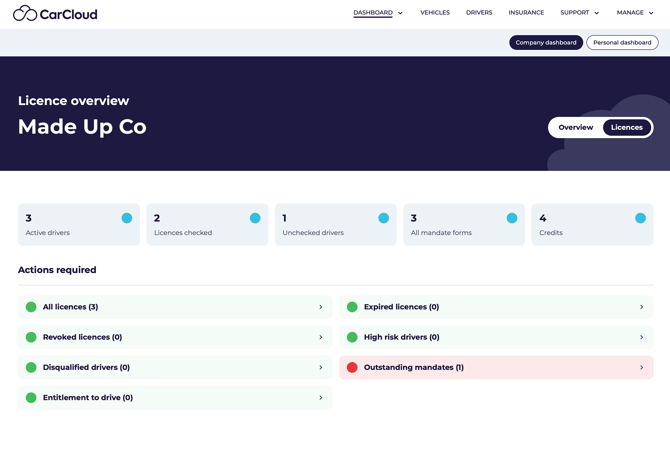
On the company dashboard, switch from Overview to Licences. The tiles show active drivers, licences checked, unchecked drivers, mandate forms and credits left.
Under Actions required, each link opens a filtered list: All licences, Expired licences, Revoked licences, High risk drivers, Disqualified drivers, Outstanding mandates and Entitlement to drive. Work through any list with a count above zero.
Export your licence list
Click Export to CSV on the Licence mandate page. The file lists each driver's name, registration, email, job title, department, date of last check, months since last check, date of last request and mandate status.
What's next?
- Send reminders to any driver still showing an amber dot
- Set a regular schedule for every driver with an agreed mandate
- Check the Licences dashboard each week for expired, revoked or high risk licences