
By the end of this section, you'll have:
-
Logged in and set your password
-
Uploaded your vehicle and driver data via CSV
-
Invited your fellow fleet admins
-
Invited your drivers
Getting started: your first login
-
Open the invitation email from CarCloud and click on the Set my password button.
-
Enter and confirm a new password to create your account.
-
Click on the Login button, enter your email address and newly created password to access your account.
-
The Onboarding pop-up will appear. Click Get started to begin.
Download the CSV template

-
On the onboarding screen, click Download the CSV file template here.
-
Once the download has completed, open the CSV file on your computer.
Complete the CSV file
Enter your user and vehicle data into the relevant columns. This should include all employees and contractors who drive for work purposes.
Assign user roles
For each user, enter one of the following values in the Role column.
⚠️ The role must be typed exactly as shown below (case-sensitive).
|
Role |
Description |
|---|---|
|
|
Fleet admins — general users of the fleet management system who can manage company data within the platform. |
|
|
Users who can access the self-service dashboard and may or may not have a company-assigned vehicle. |
|
|
Users who can access the self-service dashboard and have an allocated vehicle. |
Assign fleet categories
For each vehicle, specify the fleet category in the fleet_category column.
⚠️ The fleet category must be typed exactly as shown below (case-sensitive).
|
Fleet category |
Description |
|---|---|
|
|
Vehicles owned outright by the company and generally used by one person. |
|
|
Vehicles owned by employees or contractors but used for business purposes. |
|
|
Vehicles hired on a temporary basis from a hire company. |
|
|
Vehicles used by the company under a lease arrangement. |
-
Finance or lease payment (
monthly_cost) — for vehicles with a finance or lease agreement, enter the monthly payment in themonthly_costcolumn. This value must be the net amount (excluding VAT). -
Mileage (
current_mileage,annual_mileage) — enter the vehicle's current mileage incurrent_mileageand its estimated annual mileage inannual_mileage. -
Insurance details (grey fleet vehicles only) — for grey fleet vehicles, populate the following columns if you have the information to hand:
-
insurance_due— the date the vehicle's insurance is due for renewal. -
insurance_business_use— confirmation that the vehicle is insured for business use.
-
💡 Adding insurance data at upload means your grey fleet vehicles show as compliant on day 1. If you leave these columns blank, grey fleet drivers will be prompted to log in and enter the details themselves before their vehicle can be marked compliant.
Once all data has been entered:
-
Save the document as a CSV file.
-
Return to the CarCloud platform.
Upload the CSV file
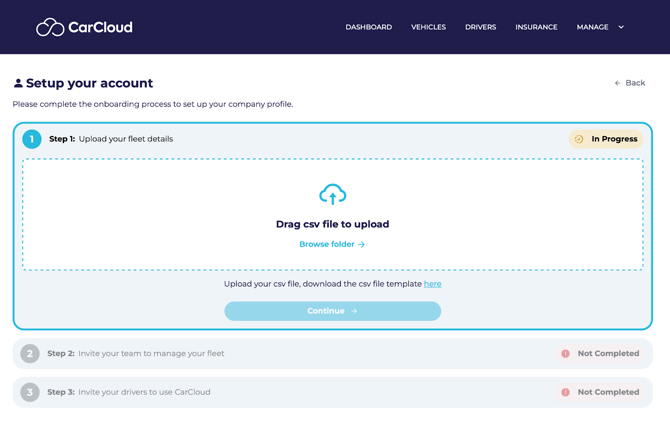
-
Click Browse, or drag and drop your CSV file into the upload area.
-
If errors are detected, the platform will highlight which columns need correcting.
-
Open the spreadsheet, correct the data, save it again as CSV, and reupload.
-
When the file is valid, you'll see an upload successful message and the Continue button will become active.
-
Click Continue to start the onboarding process.
-
A progress bar will be displayed, and you'll be notified once onboarding is complete.
⚠️ Double-check your CSV before uploading. Role and fleet category values are case-sensitive — even a stray capital letter will trip the validator.
Step 2: Invite your admin colleagues
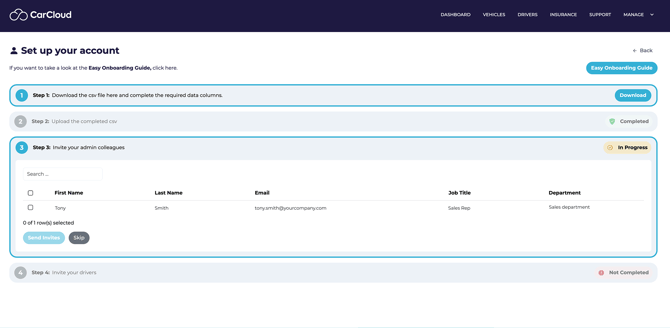
Once your data has been uploaded, you can invite the employees you assigned the admin role.
💡 Best practice: Before sending invitations, send a short email to your would-be fleet admins introducing CarCloud as your vehicle management system and letting them know they'll receive an onboarding invitation shortly. You can use our ready-made template here: email template.
You have two options at this stage:
-
Bulk send invitations to all fleet admins now, or
-
Skip and send invitations manually later.
Step 3: Invite your drivers
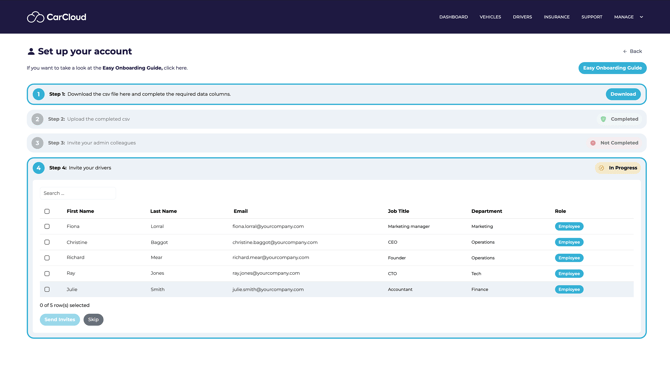
You can now invite your drivers to the platform.
💡 Best practice: Send a short email to your would-be drivers introducing CarCloud and letting them know they'll receive an onboarding invitation. You can use our ready-made template here: email template.
You have two options at this stage:
-
Bulk send invitations to all drivers now, or
-
Skip and invite drivers manually later.
Once invitations are sent, recipients will receive an email with instructions on how to access CarCloud and activate their account.
What's next?
Your fleet and people data are now in CarCloud. From here you can:
-
Review and manage your fleet in the fleet dashboard
-
Chase up any drivers who haven't yet activated their account
-
Explore the compliance, insurance, and pool vehicle features in the rest of the user guide