
By the end of this section, you'll be able to:
- Generate a finance report for a leased or contract hire vehicle
- Review and verify the agreement details captured by the platform
- Confirm the lease company and payment information
- Plan ahead for replacement or renewal using the remaining agreement term
- Set a renewal reminder so you never miss a lease end date
Step 1: Open the vehicle record and find the finance section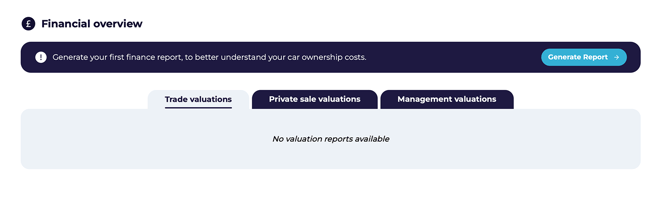
- Select the relevant vehicle record in the Vehicles page.
- Go to the Vehicle Data page by clicking on the relevant registration number.
- Scroll down to the Financial Overview section.
- Confirm you're working on the correct vehicle before generating the report.
Step 2: Start the report and enter the initial finance details
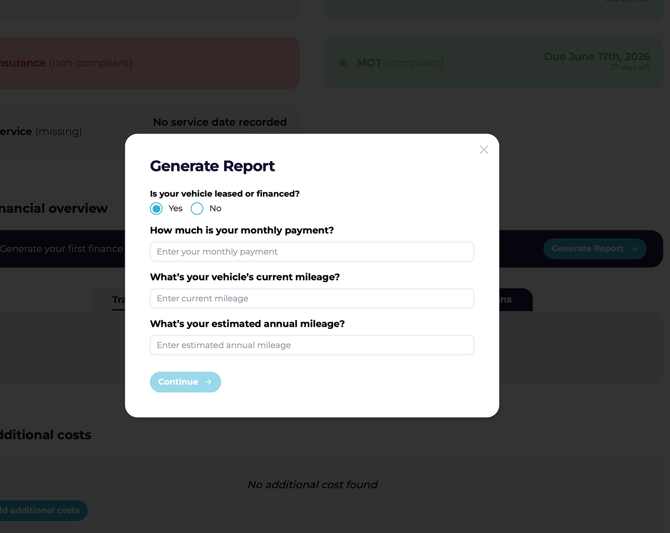
- Click Generate Report.
- In the pop-up, confirm Yes if the vehicle is financed.
- Enter the vehicle's monthly payment.
- Enter the vehicle's current cumulative mileage.
- Enter the estimated annual mileage for this vehicle.
- Click Continue to let the platform identify the agreement type.
Step 3: Confirm lease company and payment information
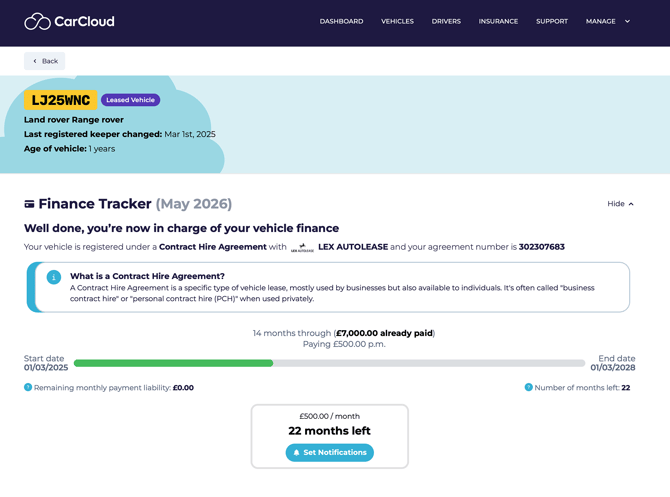
Review the report for the following key details:
- Lease company name
- Agreement number
- Months completed on the agreement
- Total amount paid to date
- Monthly payment amount
Use this section to confirm the finance record is complete and correct.
⚠️ If any detail looks incorrect, investigate before relying on the report. Double-check the agreement number and lease company name against your supporting documentation.
Step 4: Check remaining agreement time and plan ahead
- Review how much time is left on the agreement.
- Use the remaining term to plan for vehicle replacement or renewal.
- Begin preparing early so there's enough time to arrange a replacement vehicle before the lease ends.
💡 Treat the remaining-term figure as your prompt to start replacement conversations — sourcing a new vehicle can take weeks, so the earlier you start, the smoother the handover.
Step 5: Set a renewal reminder
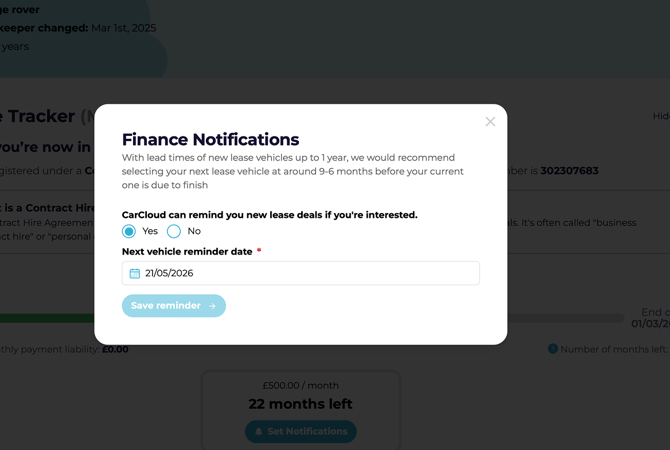
- Click Set Notifications.
- Select the date you'd like the platform to remind you about the lease renewal.
- Click Save Reminder to confirm.
- Verify that the reminder has been saved successfully and will be sent through the system.
- You will be notified in the upcoming actions section of the Company dashboard when your lease is up for renewal.
💡 Save the reminder as soon as you've reviewed the lease details so no renewal date slips through. Setting it early enough gives you breathing room to plan a replacement.
Tips for keeping finance records accurate
- Enter finance details immediately when generating the report so you don't miss any required fields.
- Use the agreement end date and remaining term to schedule replacement planning well in advance.
- Keep a consistent process for checking monthly payment, mileage, and agreement status each time you generate a report.
- Save reminders the moment a lease is reviewed — it's the easiest way to make sure renewals never catch you out.
What's next?
- Head to the Vehicles Management page to review the wider vehicle record.