
By the end of this section, you will be able to:
- Find your vehicle profile and details, and browse between multiple vehicles
- Know what to do if no vehicle is showing yet
- Recognise whether your vehicle is grey fleet or owned fleet
- Understand the compliance checks, reminder schedule and status indicators
- Update your insurance details to stay compliant (grey fleet)
- Flag an issue to your Fleet Administrator (owned fleet)
- Add a new business mileage trip and see your total mileage and emissions
1. Your Personal Dashboard
After signing in, you arrive at your Personal Dashboard — your central hub for managing vehicles, compliance and trips.
Viewing your vehicles
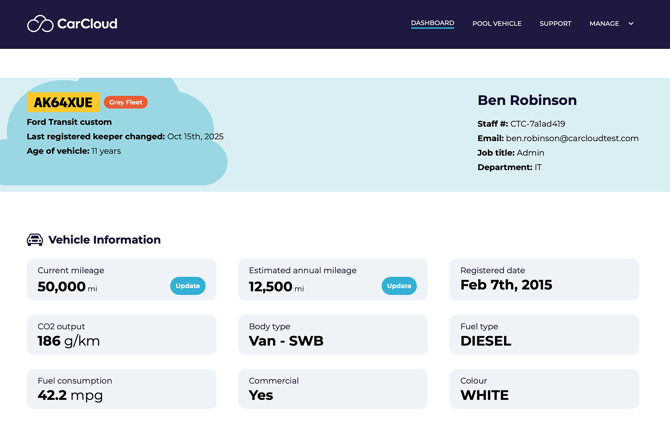
If vehicles are assigned to you, your dashboard will display:
- Vehicle profile — registration, fleet type, make, model, keeper start date and age.
- Your profile — name, staff number, email, job title and department.
If you have multiple vehicles, use the vehicle scroller below the vehicle profile to browse between them.
No Vehicles Shown
If no vehicles are assigned to you, a message will advise you to contact your Fleet Administrator. If you use your own vehicle for business, give your vehicle details to your Fleet Administrator so they can add it to the system and allocate it.
Vehicle Information
You can view all relevant vehicle information, including:
- Current mileage
- Estimated annual mileage
- Registration date
- CO₂ output
- Body type
- Fuel type
- Fuel consumption
- Gearbox
- Number of doors
- Commercial classification
- Colour
2. Grey Fleet Compliance
If you use your own car for business, it is classified as a grey fleet vehicle (a vehicle that is owned by an employee or contractor but used for business purposes). In order to fulfil their obligations under Health and Safety regulations, your employer needs to know that you vehicle is safe, taxed, MOT'd and insured for business use — this section walks you through the required checks and how to keep your vehicle compliant.
Using your own vehicle for business (grey fleet)
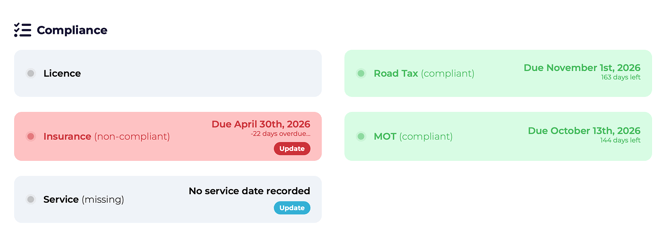
If you use your personal vehicle for business, it will appear with a Grey Fleet badge alongside your registration plate.
Compliance checks
To ensure your vehicle is compliant for business use, the following checks apply:
- Insurance
- Road tax
- MOT
- Service
Each item shows its renewal due date. Road tax and MOT are checked automatically and the CarCloud platform sends automated reminders to help you stay compliant.
Reminder schedule
- 30 days before the due date
- 15 days before the due date
- 7 days before the due date
If tax or MOT is not completed on time, your vehicle becomes non-compliant. You will then receive notifications:
- 24 hours after the due date
- 48 hours after the due date
Status indicators
|
Status |
Meaning |
|---|---|
|
|
Compliant (remains green until 15 days before the due date) |
|
|
Still compliant, but due date is within 15 days |
|
|
Non-compliant — action required |
 Green
Green Yellow
 Red
RedInsurance compliance
To meet insurance compliance:
- Update your insurance renewal date.
- Confirm that your policy includes the appropriate class of cover for business use.
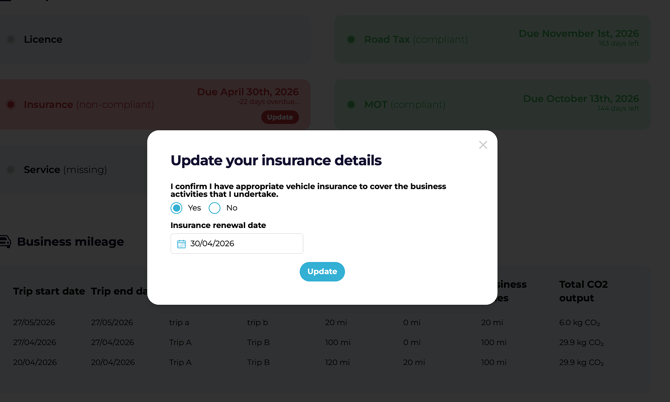
If your insurance status is red:
- Click Update.
- Confirm appropriate business-use cover.
- Enter the insurance renewal date.
If you cannot confirm business-use cover, you must obtain the appropriate insurance before driving for work.
3. Owned Fleet Compliance
If your company has allocated you a vehicle, the business looks after compliance — but it's still useful to know what's checked and where to go if something doesn't look right.
Using a company vehicle (owned fleet)
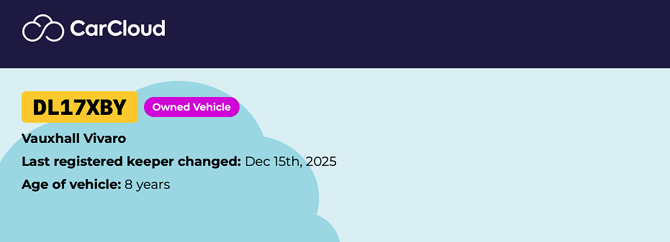
If you have been allocated a company vehicle, it will appear with an Owned Fleet or Leased or Spot hire badge alongside your registration plate.
Compliance checks
The business is responsible for ensuring company vehicles remain compliant. Within your Personal Dashboard, you can view the following:
- Insurance
- Road tax
- MOT
- Service
Each item shows its due date. If any check is non-compliant, contact your Fleet Administrator.
4. Logging Business Mileage
Logging your business mileage helps your employer keep accurate CO₂ figures and reimburse you correctly. It's a quick task — just a few details per trip — and this section shows you exactly how.
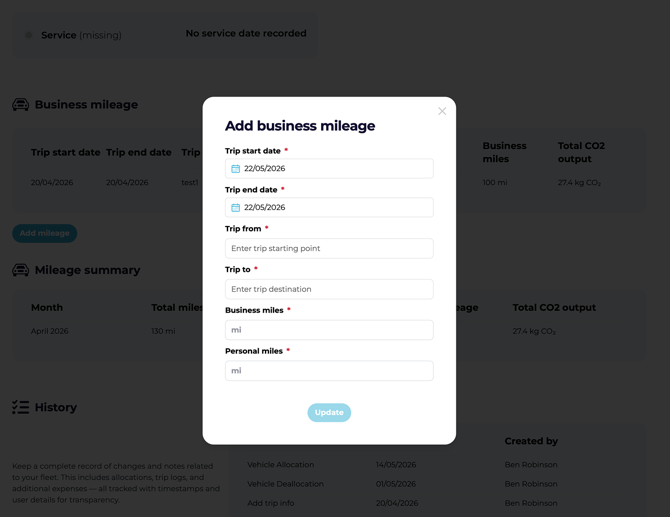
To record your vehicle's CO₂ usage, log your business mileage trips:
- Open the Business Mileage section.
- Click Add mileage.
- Enter the trip details:
- Trip date
- Trip origin (from)
- Trip destination (to)
- Total business mileage
- Business purpose
- Click Update to save.
The trip appears in the business mileage table. Total mileage and emissions are shown beneath the table.
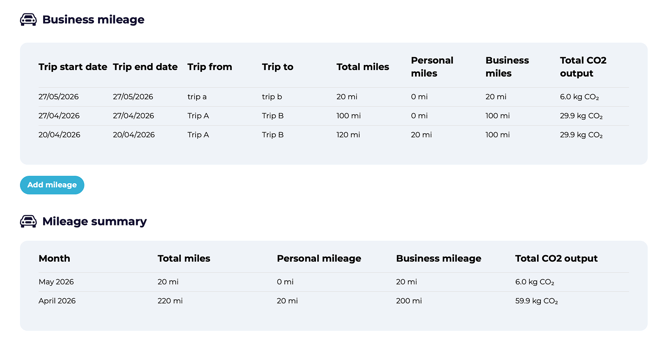
Best practice: Log each trip soon after you make it — it's much easier than trying to reconstruct a week's worth of journeys later.
What's next?
- Check Requesting a Pool vehicle if you need to book a shared vehicle.