
By the end of this section, you'll have:
- Checked your details against your driving licence
- Agreed your licence mandate
- Learned how to withdraw your mandate if you need to
💡 Have your photocard driving licence to hand before you start.
Step 1: Open your mandate
- Sign in to CarCloud with your email and password. If you belong to more than one company, choose the one asking for the check.
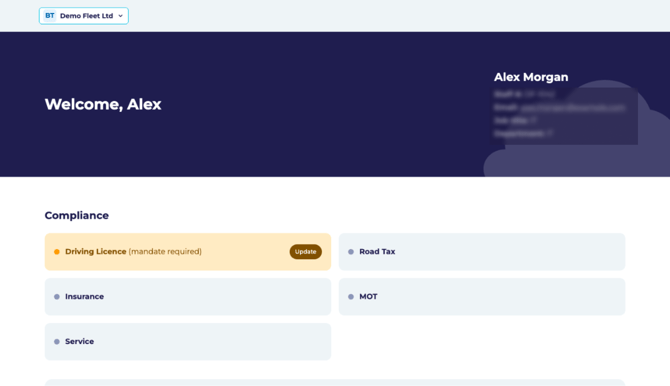
- Find Driving Licence (mandate required) under Compliance on your dashboard.
- Click Update to open the Driving licence mandate.
Step 2: Check your details
The form shows who is asking for the check (Section 1) and why (Section 2). Section 3 holds your details. Your name, date of birth and address are filled in from your profile, so check each one against your licence.
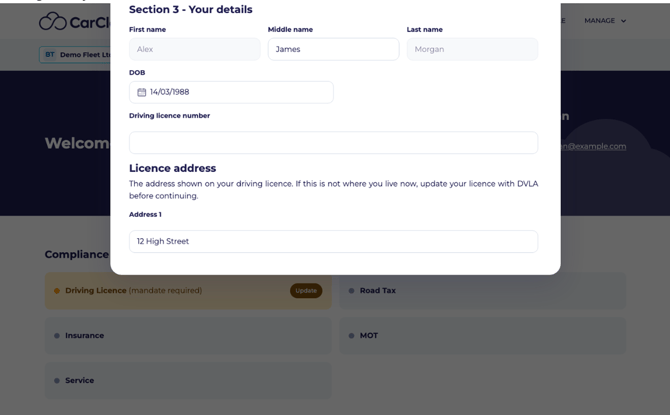
| Field | What to enter |
| First name | Exactly as on your driving licence |
| Middle name | Exactly as on your driving licence |
| Last name | Exactly as on your driving licence |
| DOB | Your date of birth DD/MM/YYYY |
| Driving licence number | The 16 letters and numbers in section 5 of your photo driving licence |
| Licence address | The address shown on your driving licence |
⚠️ Your details must match your licence exactly, or the check will fail and your employer will ask you to do this again. The first five letters of your licence number are your surname, and the digits that follow come from your date of birth.
⚠️ If you've moved and your licence still shows your old address, update your licence with the DVLA before you continue.
Step 3: Accept the declaration
- Read Section 4 and Before you accept. They explain what the DVLA will share, who is responsible for your data, that results are kept for 3 years, and who to contact with questions.
- Tick I have read and accept the declaration above. The Accept button only works once this is ticked.
- Click Accept.
You'll see Licence mandate accepted, and your dashboard shows Withdraw mandate in place of Update. Your mandate lasts 3 years, or until you stop driving for the company or withdraw it.
Step 4: Withdrawing your mandate
You can withdraw your permission at any time.
- Click Withdraw mandate under Compliance on your dashboard.
- Read what happens when you withdraw: CarCloud stops all scheduled and automatic checks of your DVLA record straight away, your employer is told your authorisation has ended, and your existing licence details and check history are kept, but no new checks are made.
- Click Withdraw authorisation.
You'll see Mandate withdrawn, and your dashboard goes back to Driving Licence (mandate required). To give permission again, click Update and follow Steps 2 and 3.
💡 If you're not sure what withdrawing means for your role, speak to your fleet administrator first.
What's next?
- Nothing else to do. Your employer can now run licence checks while your mandate lasts.
- Check results go to your fleet manager. They aren't shown on your own dashboard.
- If your email address is wrong, ask your fleet administrator to correct it.