
By the end of this guide, you'll be able to:
- Find your way around a car's page
- Keep its mileage up to date
- Read each compliance card and act on it
- Generate a finance report and log extra costs
- Keep a history of anything worth remembering
Opening a car's page
From My Vehicles, click the registration. Anywhere you see a registration as a link — in a compliance list, in Upcoming actions, in search results — clicking it brings you here.
The overview
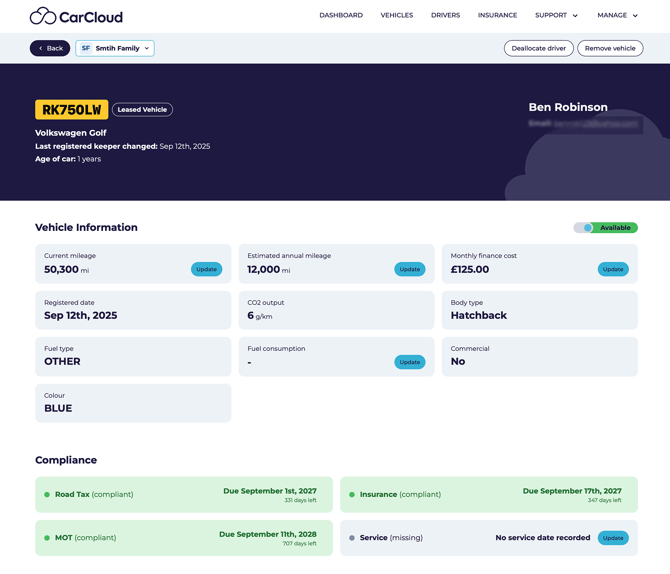
The top of the page gives you the headlines: registration, category badge, make and model, when it was last registered, and how old it is. On the right you'll see who drives it, or a prompt if nobody is assigned.
Vehicle information
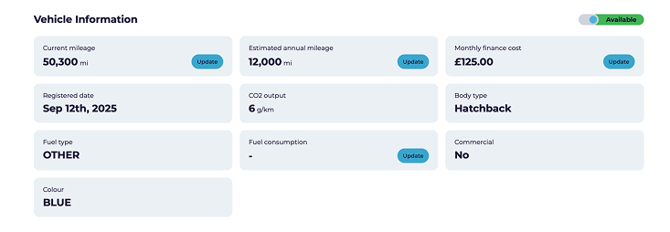
Most of this fills in automatically from the registration number: registered date, CO₂ output, body type, fuel type, fuel consumption, gearbox, number of doors and colour.
Two fields are worth keeping current yourself:
- Current mileage — update it when you get a fresh reading, at a service or MOT.
- Estimated annual mileage — update it if your driving changes, for example a new commute.
💡 These two drive the valuations and running-cost estimates, so keeping them roughly right makes everything else more useful.
What's due
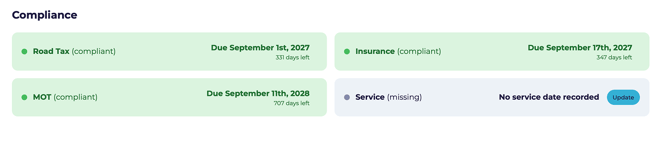 The cards cover Road tax, MOT, Insurance and Service.
Road tax and MOT update themselves from the registration number. Insurance and service dates you enter yourself — click Update on the card, enter the date, and confirm.
Finance and valuation
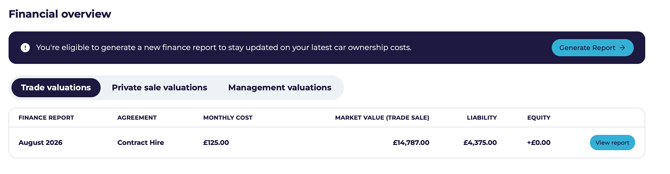
Click Generate Report and CarCloud works out what your car is worth, what you still owe on it if it's financed, and the difference between the two.
💡 Run a fresh report each month, and always before you sell, part-exchange or renew. Valuations move.
See the finance report guide that matches how you bought the car — PCP, Hire Purchase, lease, loan, or owned outright.
Extra costs

This is where you log spending that isn't tracked automatically — repairs, new tyres, accessories, anything out of the ordinary.
- Click Additional Costs.
- Enter the invoice number, date, category, reason and amount.
- Save.
💡 Log costs as the bills come in. It's far easier than reconstructing a year of receipts later, and it makes the annual running-cost figure genuinely useful.
What it costs to run
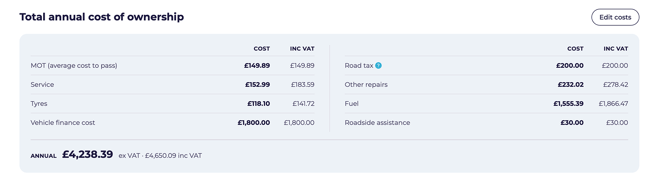
This panel estimates the cost of running the car over twelve months: MOT, servicing, tyres, finance payments, road tax, other repairs, fuel and roadside assistance. You can edit any figure if you know better than the estimate.
Mileage
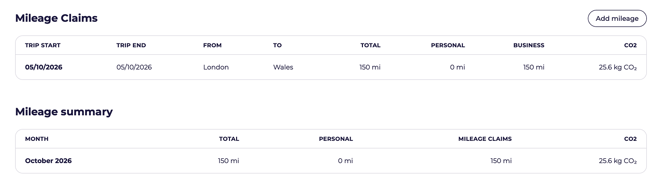 Journeys logged against this car appear here, with a monthly summary of miles and CO₂. See Logging your mileage.
History and notes
Use this to note anything worth remembering — a repair, a warning light, a conversation with the garage, why you decided to keep or replace the car. Click any entry to read it in full.
💡 Be generous with notes. They're what turn a service history into something you can actually hand to a buyer.
What's next?
- Run a finance report to see what your car is worth.
- Set up your insurance in Managing your insurance.