
By the end of this guide, you'll have:
- Created your CarCloud personal and family account
- Verified your email address
- Chosen how many vehicles to cover and paid for them
- Set your password and logged in for the first time
What it costs
CarCloud Personal is £4.99 per vehicle, per month. You choose how many vehicles you want to cover when you sign up, and you can cover anything from 1 to 10 vehicles.
Each vehicle you add uses one credit. So if you sign up for two vehicles, you can add two cars.
💡 If you're not sure, start with the number of cars in your household today. You can buy more later from Settings.
Step 1: Start your sign-up
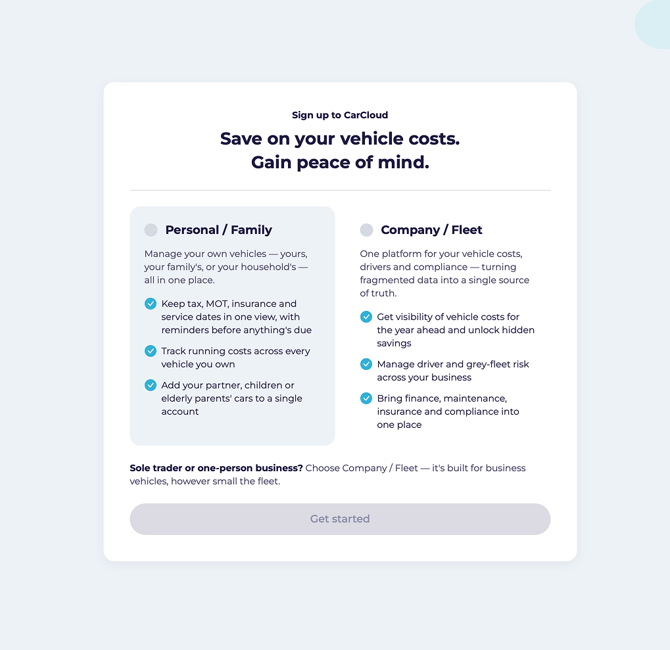
- Go to the CarCloud sign-up page and choose Personal & Family.
- Enter your email address.
- Choose how many vehicles you'd like to cover.
- Click Continue.
We'll send a verification email to the address you entered.
Step 2: Verify your email
- Open the email from CarCloud.
- Click the verification link.
- You'll land back on the sign-up page showing Your email address has been verified.
- Click Continue.
⚠️ Important: open the verification link once, and keep that tab open. The link works a single time. If you refresh the page or open the link again, you'll need to start sign-up from the beginning.
💡 The link is valid for 15 minutes. If it expires, start again and we'll send a fresh one.
Step 3: Your details and payment
- Enter your account name — this is what your garage will be called, for example "The Robinson Family".
- Enter your address and contact number.
- Accept the Terms of Service.
- Click Continue to payment.
- Enter your card details on the secure checkout page and confirm.
You'll see a confirmation showing the amount paid and the number of vehicle seats you've bought.
Step 4: Activate your account and log in
- Open the invitation email that arrives after payment.
- Click Accept invite.
- Enter your first name, last name and a password, then confirm the password.
- Click Set up.
- Log in with your email address and new password.
You'll land on your Digital Garage, ready to add your first car.
What's next?
- Go to Adding your first vehicle to get your car into CarCloud.
- Take a tour of Introduction to your Digital Garage to see what's available.