
By the end of this guide, you'll be able to:
- Find your way around the Vehicles page
- Add a new car and remove one you no longer have
- Change which family member a car is assigned to
- Update a car's category
- Export your vehicle list
Opening the Vehicles page
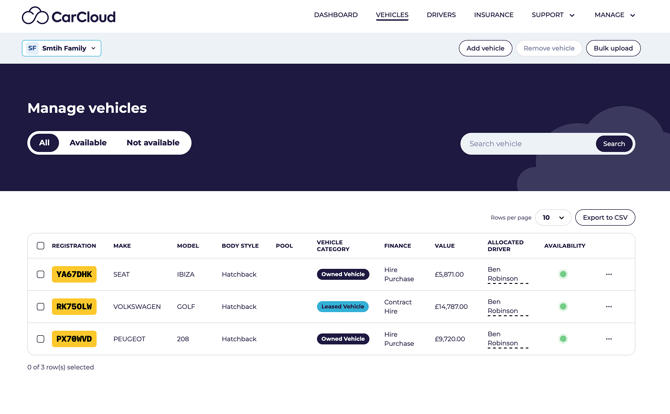
From your Digital Garage, click My Vehicles. You'll see every car you're covering.
Filters and controls
Use Rows per page to change how many cars you see at once, and Export CSV to download the list as a spreadsheet.
Finding a car
Use the Search box at the top. You can search by registration, make or model, or the name of the person who drives it.
What you can do to each car
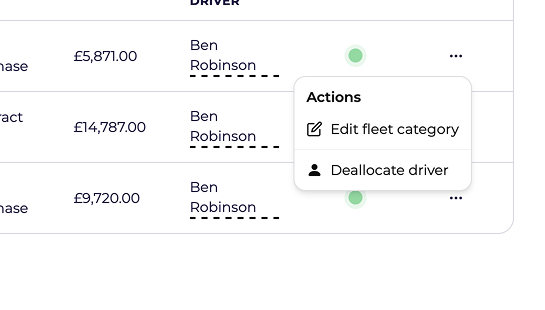
- Edit category — change whether the car is owned, leased or hired
- Allocate driver — say who in the household drives it
- Deallocate driver — remove the current driver
Changing a car's category.
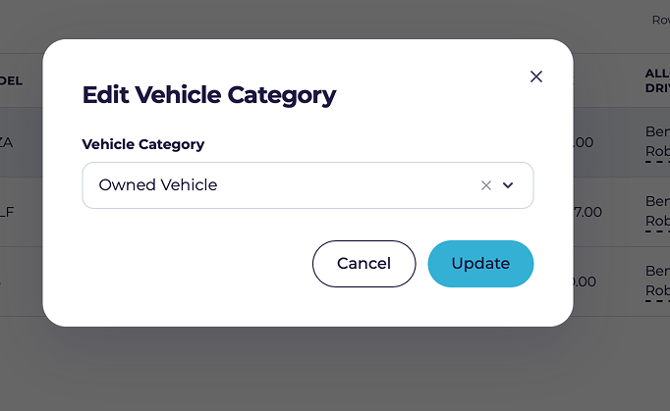
- Open the Actions menu.
- Click Edit category.
- Select the correct category.
- Click Save.
Changing who drives a car
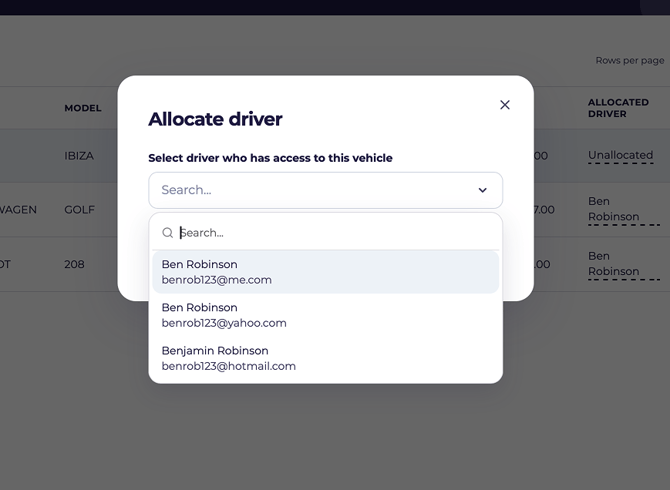
- Open the Actions menu on the car.
- Click Unassign driver to clear the current person.
- Search for the family member you want and select them.
- Click Continue.
💡 A car doesn't have to be assigned to anyone. Leave it unassigned if it's a shared family car.
Adding a car
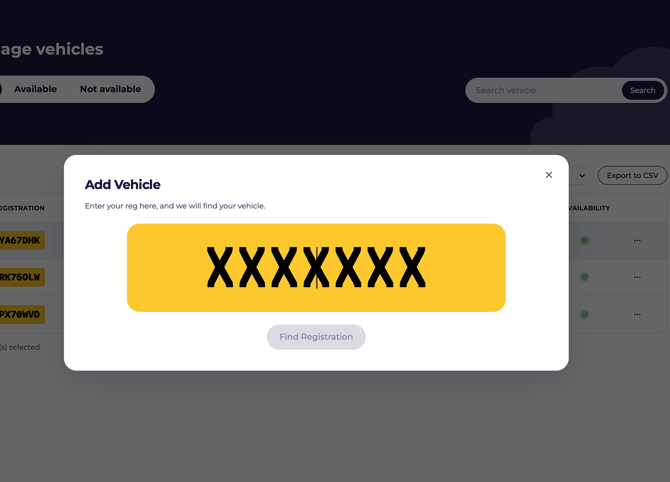
- Click Add vehicle.
- Enter the registration and click Find Registration.
- Choose the vehicle category.
- Click Save Vehicle.
⚠️ Adding a car uses a vehicle credit. If you've used them all, you'll be prompted to buy another — see Vehicle credits: adding and removing cars.
Removing a car
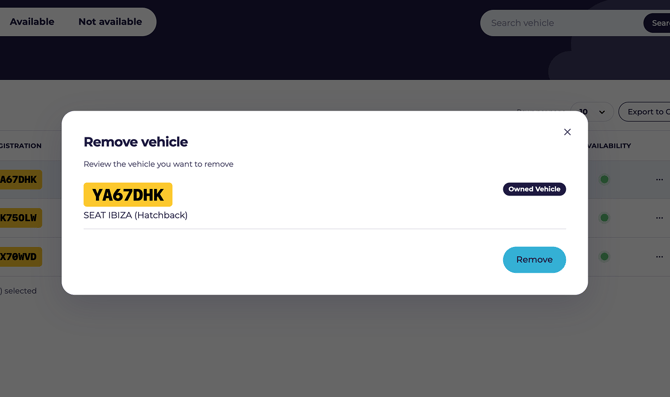
- Tick the checkbox next to the car.
- Click Remove vehicle.
- Check you've selected the right one and confirm.
⚠️ Removing a car also uses up its credit. You'll need to buy a new credit to add a different car in its place. Double-check before you confirm.
What's next?
- Open a car on Your vehicle page to see everything CarCloud knows about it.
- Manage the people who drive them in Managing your family members.