
By the end of this guide, you'll be able to:
- Add an insurance policy
- Link your cars to it
- Keep the details up to date
- Record an accident and any claim that follows
Adding a policy
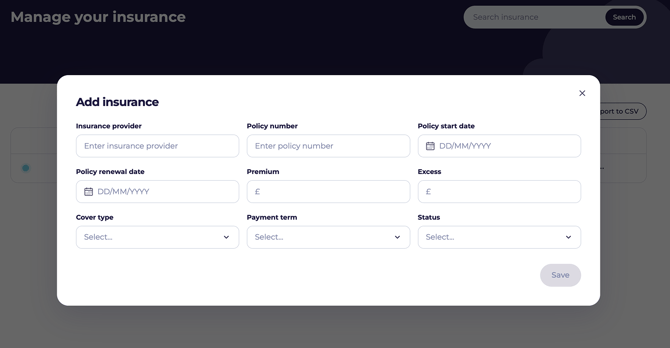
- Go to the insurance section and click Add insurance.
- Enter your insurer's name and policy number.
- Enter the policy start date and renewal date.
- Enter the premium and any excess.
- Choose the cover type and payment term.
- Save.
⚠️ Get the renewal date right. It's what drives your reminders and whether the car shows as compliant. Check it against your certificate rather than guessing.
Linking your cars
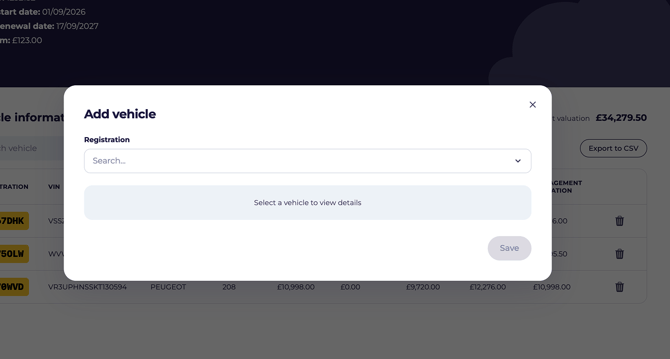
- Open the policy.
- Click Add vehicle.
- Choose the car from the dropdown, or search for its registration.
- Save.
Once a car is linked, its insurance compliance updates automatically and its renewal date matches the policy.
Keeping a policy up to date
When you renew or switch insurer, open the three-dot menu on the policy, click Edit, update the details and save.
Policy status options are Active, Suspended, Renewed and Cancelled.
What's next?
- Check what else is due in Staying compliant.
- Head back to Your vehicle page to see the car's full picture.