
By the end of this guide, you'll be able to:
- See everyone on your account
- Add a family member and invite them
- Understand what each account status means
- Remove someone who no longer needs access
Seeing everyone on your account
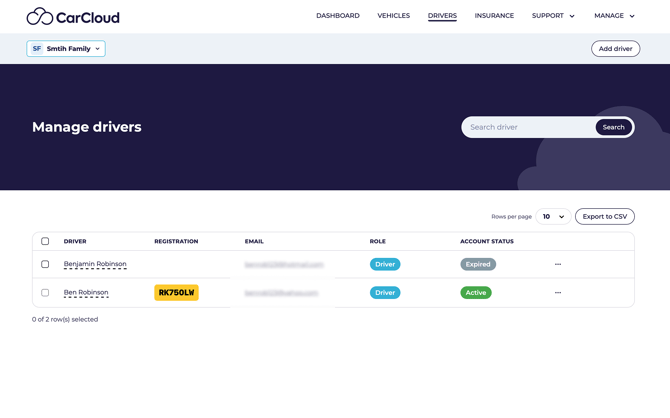 From your Digital Garage, go to the drivers list. You'll see everyone with a profile on your account.
A registration in someone's row means a car is assigned to them. No registration means they don't have a car assigned yet.
What the statuses mean
- Created — the profile exists, but they haven't been invited yet
- Invited — they've been sent an invitation but haven't set up their password
- Active — they've logged in and are using CarCloud
💡 Check the status before you act. Someone at Created needs an invite; someone at Invited needs a reminder, not a second invite.
Adding a family member
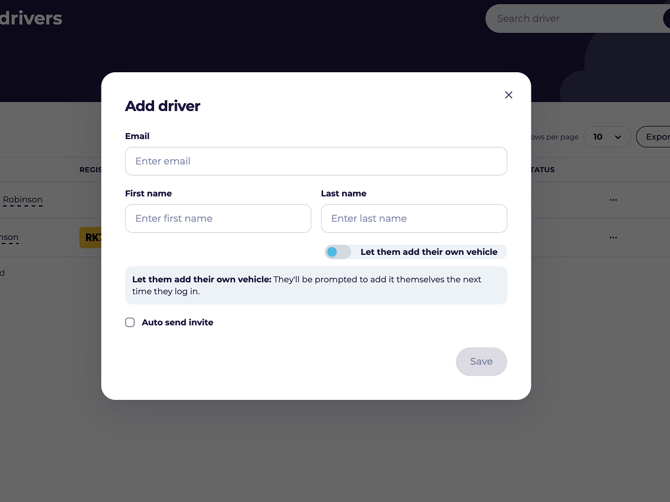
- Click Add driver.
- Enter their email address, first name and last name.
- Select Auto Invite if you would like to send an invite once the details are saved. If you want to manually invite the driver just select the save button.
- Confirm the details and save.
💡 Use an email address they actually check — it's how they'll receive their invitation and any reminders about their car.
Inviting them
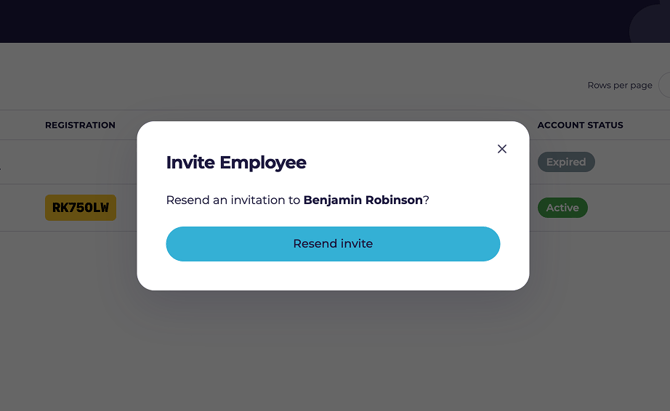
Adding someone creates their profile, but they can't log in until they're invited.
- Find the person, with status Created.
- Open the three-dot Actions menu on their row.
- Click Send invite.
If they've been invited already and haven't got round to it, use Re-invite instead.
Editing or removing someone
- Open the Actions menu on their row.
- Click Edit to change their name or details.
- Click Remove to take them off the account.
Removed people move to the Archive tab, so their history isn't lost.
💡 If someone's car is being passed to another family member, reassign the car first — see Managing your vehicles.
Exporting your list
Click Export to CSV to download everyone on your account as a spreadsheet.
What's next?
- Send them Joining your family's CarCloud account so they know what to expect.
- Assign them a car in Managing your vehicles.