
By the end of this guide, you'll be able to:
- Record a journey
- Understand the business and personal split
- See your totals and CO₂ output
Recording a journey
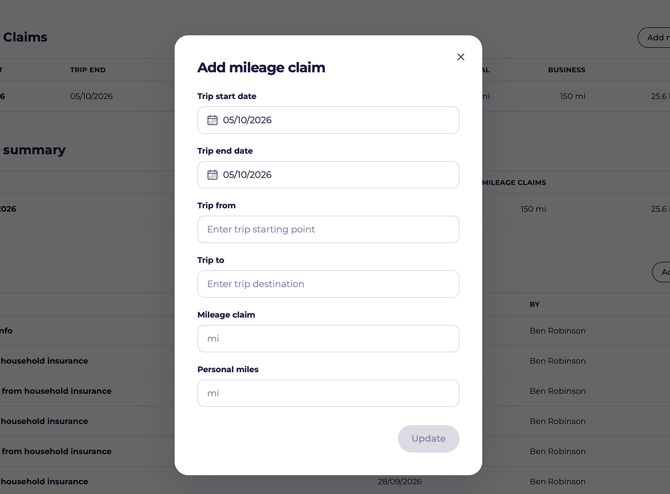
- Find the Business mileage section on your dashboard.
- Click Add mileage.
- Enter the trip start date and end date.
- Enter where you went from and to.
- Enter your business miles and personal miles.
- Click Update to save.
💡 You don't enter a total — CarCloud adds your business and personal miles together for you. Trip dates are limited to the current year.
Business miles or personal miles?
- Business miles — driving for work. Travelling to a client, a site, a meeting somewhere other than your usual workplace.
- Personal miles — everything else, including your normal commute.
If a journey was entirely personal, put the whole distance in personal miles and leave business at zero.
Seeing your totals
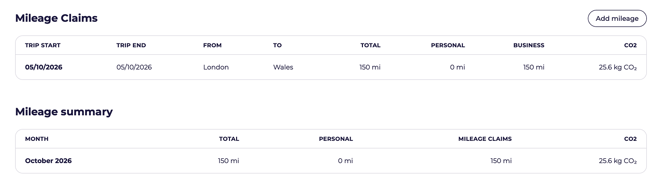
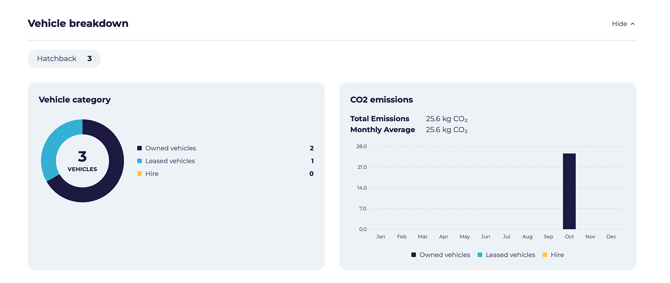 Each journey appears in the table with its dates, start and end points, the mileage split and the CO₂ it produced. Totals sit beneath the table.
Getting it right
💡 Log each trip soon after you make it. Reconstructing a week of journeys from memory is far harder than taking twenty seconds at the time.
⚠️ Check the figures before you save. A journey can't be edited or deleted once recorded, so a mistyped number stays in your totals.
What's next?
- Head back to Your personal dashboard for the wider picture.