
By the end of this guide, you'll be able to:
- Add a car using just its registration number
- Choose the right vehicle category
- Understand what a vehicle credit is
- Add more cars later
Step 1: Open the Add vehicle pop-up
The first time you log in, the welcome pop-up appears automatically: Welcome to CarCloud! It's time to add your first vehicle.
If you've closed it, click Add my vehicle on your Digital Garage.
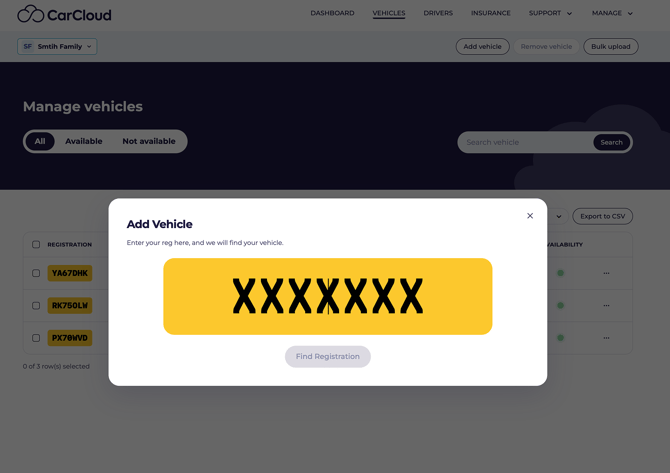
Step 2: Find your car
- Type your registration number into the box.
- Click Find Registration.
CarCloud looks the car up and shows you what it found — make, model, trim and CO₂ figure. For example: CITROEN BERLINGO, 1.6 BlueHDi M 1000 100 Enterprise Start+Stop, CO2 - 109 g/km.
💡 You don't need to type anything else. Make, model, body type, fuel type, tax and MOT status all come from the registration number automatically.
Step 3: Choose your vehicle category
Select a Vehicle category from the dropdown. This is required — the confirm button stays greyed out until you choose one.
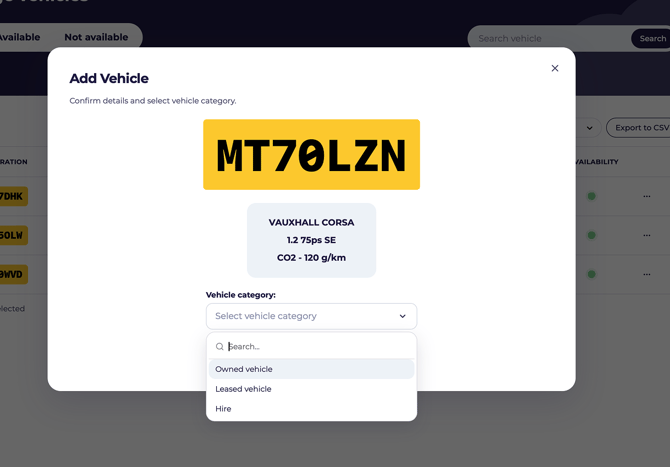
- Owned vehicle — you own the car outright, or you're buying it on finance
- Leased vehicle — you lease the car
- Hire — the car is hired
💡 If the confirm button looks greyed out, it's almost always because the vehicle category hasn't been chosen yet.
Step 4: Confirm
- Check the details are right.
- Click Yes, that's my car.
If the details are wrong, click These details are wrong and check the registration you entered.
Your car now appears in your Digital Garage, and CarCloud starts tracking its tax, MOT and other details straight away.
Adding more cars
Each car uses one vehicle credit. You bought a number of credits when you signed up — one per vehicle.
If you try to add a car and see "You've used all your vehicle credits", you'll need to buy another credit from Settings before you can add it.
⚠️ A credit belongs to the car you use it on. If you remove that car, the credit goes with it — you'll need a new credit to add a different car. See Vehicle credits: adding and removing cars.
What's next?
- Head to Introduction to your Digital Garage to see what CarCloud now tracks for you.
- Go to Staying compliant to set up your service date and insurance details.